


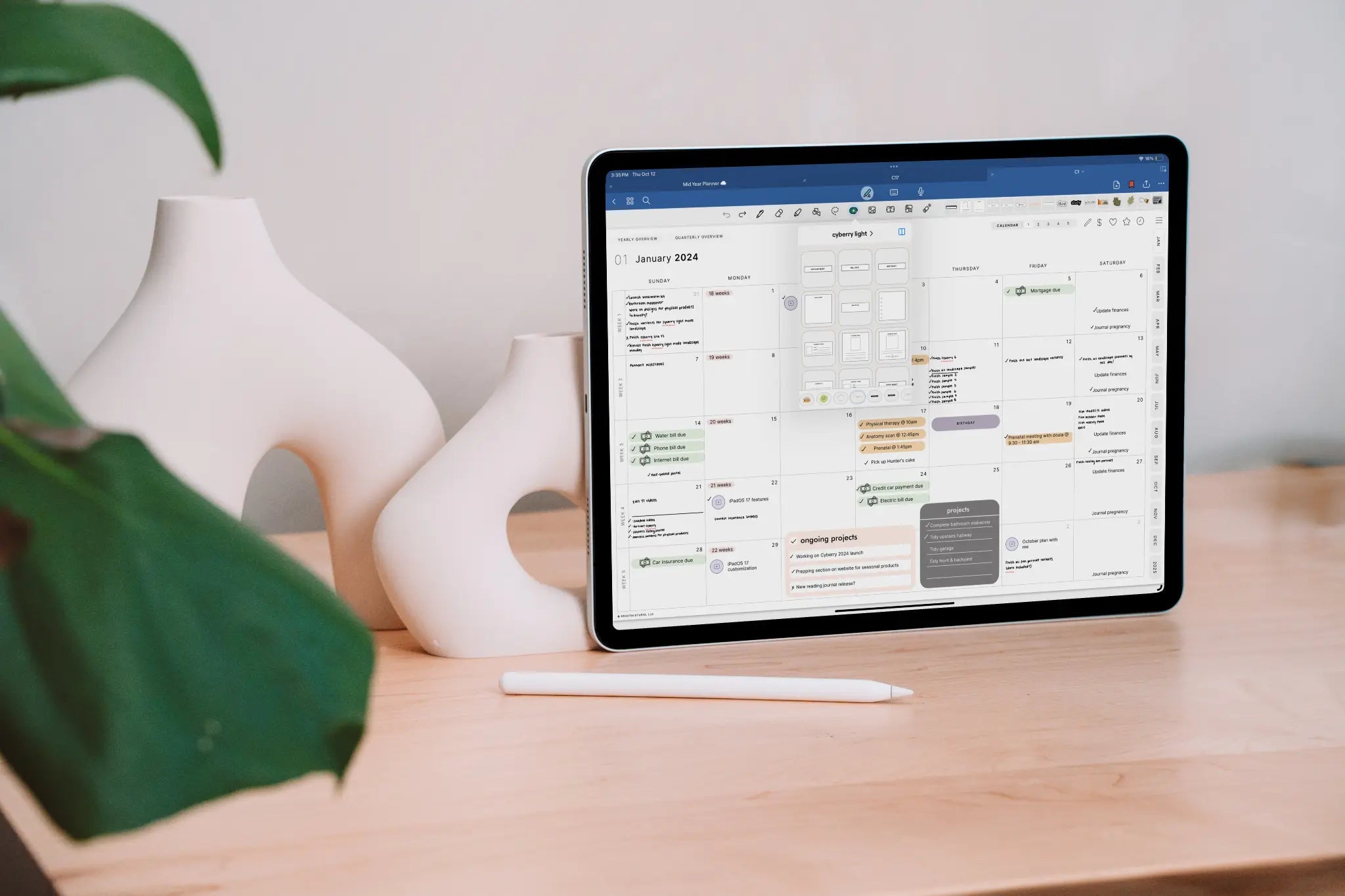
If you've ever opened GoodNotes and thought "I wish this planner looked exactly how I wanted it to" — good news: you can actually make that happen. And no, you don't need to be a graphic designer or have any fancy software to get started.

In this post I'm going to walk you through how to make a digital planner in GoodNotes, from the very basics all the way to what the process looks like when you want to take it to a more professional level.
What Is a Digital Planner, Really?
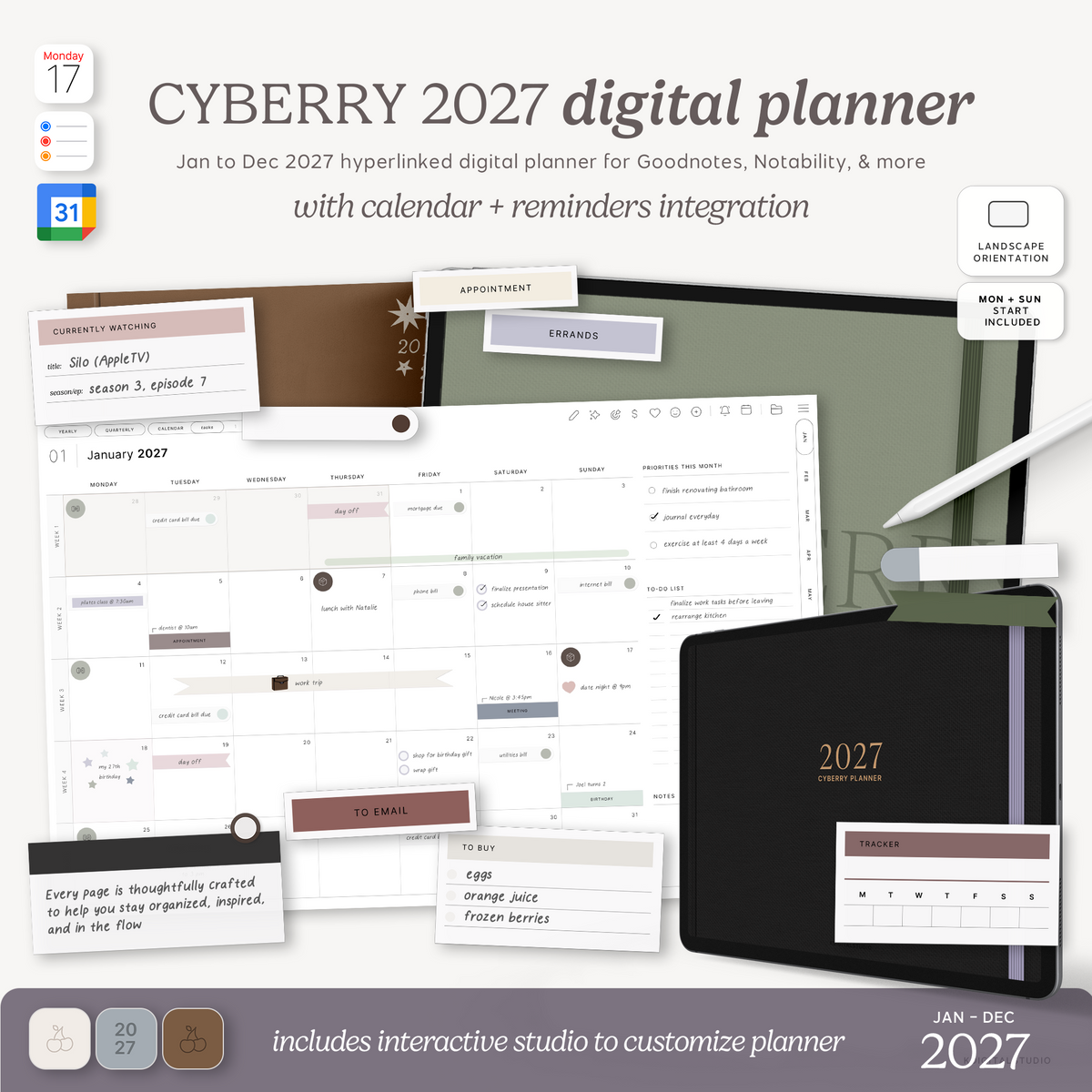
Before we get into the how, let's get on the same page about what a digital planner actually is. A digital planner is essentially a PDF file with hyperlinks built into it — those links are what let you tap a tab and jump to a different page, just like flipping through a physical planner. If that distinction is fuzzy, I explain it fully in what's the difference between a digital planner and a PDF planner.
The PDF opens inside an app like GoodNotes, Notability, or PDF Expert, and because those apps support Apple Pencil, you can write on it just like paper. It's the best of both worlds — the tactile feel of writing by hand, with all the flexibility of a digital file.
The Simple Way: Build a Basic Planner Inside GoodNotes
GoodNotes itself has a built-in template library, and you can actually create basic planner pages right inside the app. Here's how:
Step 1: Start a new notebook
Open GoodNotes, tap the + button, and create a new notebook. You can choose a cover and a paper template to start.
Step 2: Use the template library
GoodNotes has paper templates built in — things like lined, dotted, weekly layouts, and more. These are great for personal use but they're pretty limited if you want something custom.
Step 3: Import your own backgrounds
This is where it gets fun. You can design a page in Canva (or any design tool), export it as a PDF or image, and import it into GoodNotes as a custom template. Tap the three dots on a page → "Change Template" → "Import."
This works really well for simple, single-page layouts. But if you want a full planner with tabs, hyperlinks, multiple sections, and a design that actually holds up when you zoom in on an iPad screen — you'll need to go beyond GoodNotes itself.
The Professional Way: Design in a Desktop App First
Most professional digital planners — the ones you see selling on Etsy and in shops like mine — are designed in desktop software like Adobe InDesign or Affinity and then exported as a hyperlinked PDF.
Here's why that matters:
- Vector graphics mean your planner looks crisp at any zoom level
- Master pages let you apply consistent design across hundreds of pages at once
- Data merge lets you auto-populate dates, months, and repeating content instead of manually typing everything
- Hyperlinks can be set up systematically so every tab, button, and navigation element actually works — here's how those hyperlinks actually work
It's a much more powerful workflow, and it's honestly not as complicated as it sounds once you know the steps.
What You Actually Need to Get Started
If you want to go the professional route, here's what you need:
- Adobe InDesign (subscription) or Affinity (one-time purchase — my personal favorite for beginners). Torn between them? See my honest InDesign vs Affinity comparison.
- A basic understanding of how PDF hyperlinks work in GoodNotes
- Some time to learn the workflow — this isn't a 20-minute project, but it's 100% learnable
The biggest mistake I see beginners make is trying to design a full planner in Canva and wondering why the hyperlinks don't work properly, or why everything looks blurry when they zoom in. The right tool makes a massive difference.
Ready to Learn the Full Process?
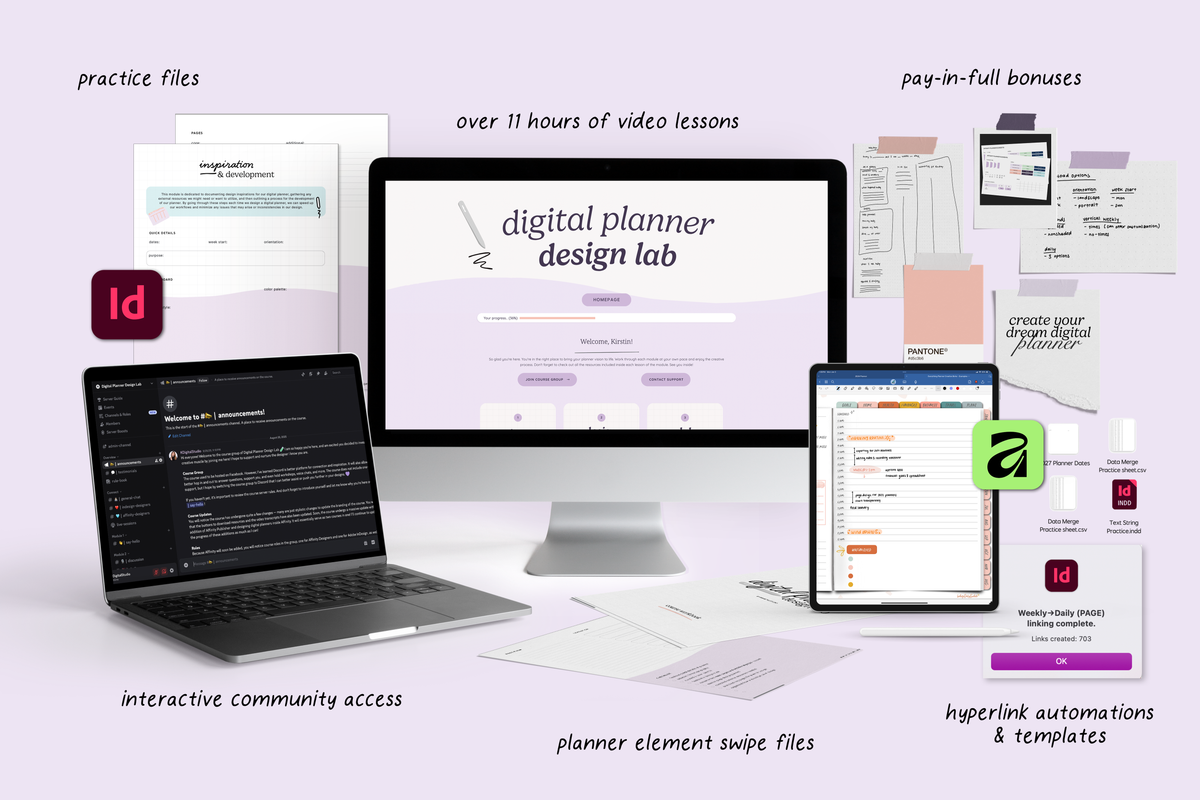
If you want to learn exactly how to design a professional digital planner from scratch — including setting up your document, building hyperlinks, using data merge to auto-fill dates, and exporting a file that works perfectly in GoodNotes — that's exactly what I teach inside Digital Planner Design Lab.
It's my step-by-step course for anyone who wants to go from "I love digital planners" to "I design and sell my own." You'll learn everything in Adobe InDesign and Affinity, and I walk you through every single step.
Share:
Goodnotes vs Notability: Which iPad Note-Taking App Is Right for You in 2026?
Teachery vs. Kajabi, Teachable & Thinkific: The Honest 2026 Comparison for Course Creators