


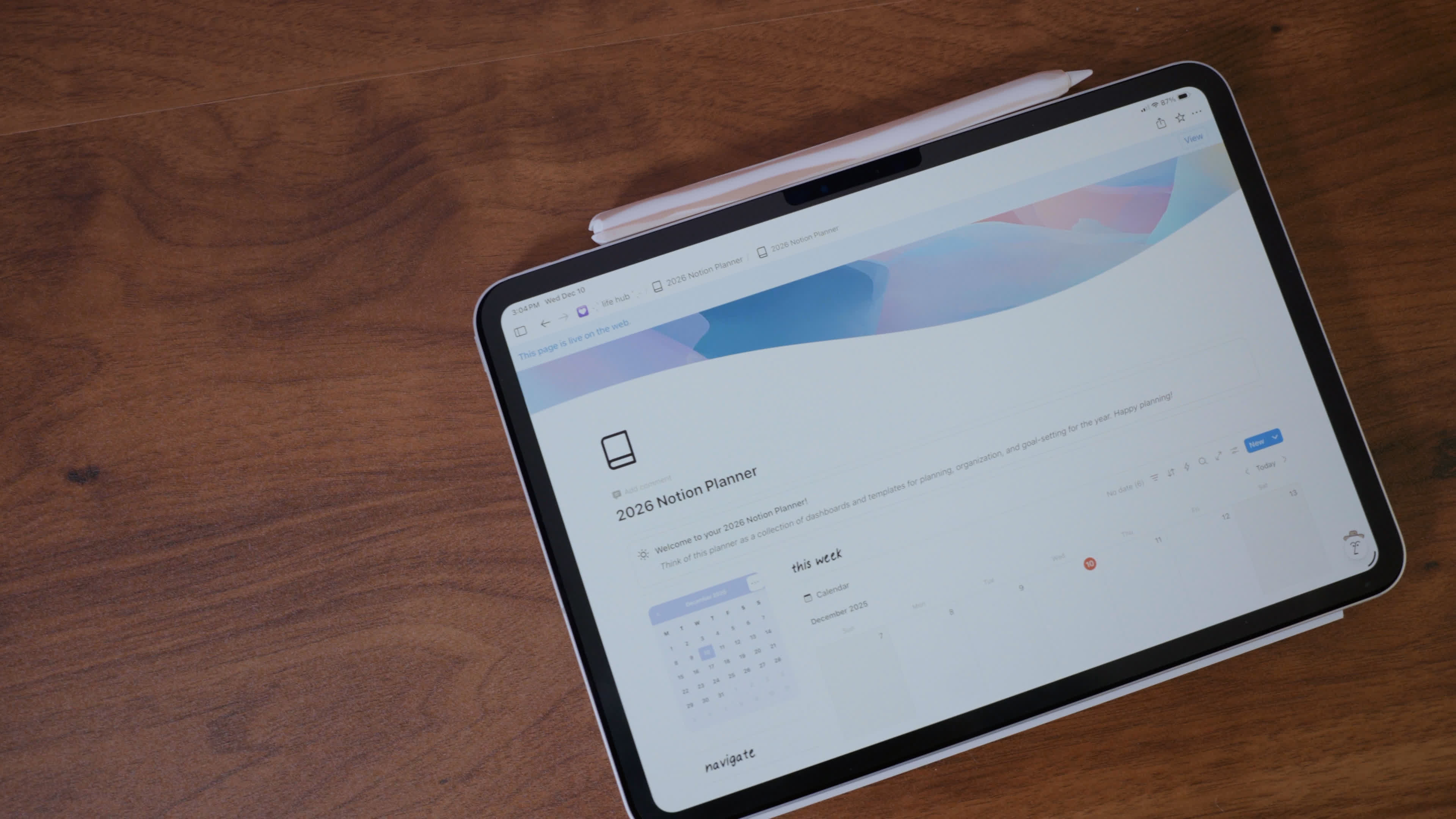
Notion is one of the most powerful planning tools available — and one of the most overwhelming places to start. If you've opened it, stared at a blank page, and closed it again, you're not alone.
This guide covers exactly what you need to know to get a working planning system in Notion, without the overwhelm. It's the first in a three-part series.
Why Notion for Planning?
Notion is a flexible workspace that combines notes, databases, calendars, and tasks in one place. For planning, that means you can have your goals, weekly schedule, project lists, and daily notes all connected to each other — rather than scattered across different apps.
It's free for personal use. It works on every device. And once your system is set up, it adapts to how you actually work rather than forcing you into a preset structure.

The Core Building Blocks
Before you build anything, understand these three Notion concepts:
Pages are your documents. Everything in Notion lives inside a page. Pages can contain text, databases, images, links, and other pages.
Databases are structured collections of pages. A task list, a project tracker, a habit log — these are all databases in Notion. Each item in a database is its own page, which means you can attach notes, files, and links to any task.
Views let you see the same database in different ways. A task database can look like a list, a calendar, a board (Kanban), or a table — depending on what you need at the moment.

Building Your First Planning System
Here's a simple structure to start with:
1. Create a Home page. This is your dashboard. Everything links from here. Give it a clear title and a simple layout — a header, a few sections, and links to your key areas.
2. Add a Tasks database. Inside your Home page, create a database called "Tasks" or "To Do." Add a "Status" property (Not Started / In Progress / Done) and a "Due Date" property. This is your core task list.
3. Add a Weekly Plan section. Create a calendar view of your tasks database filtered to show this week. Now you can see everything due this week in calendar format.
4. Add a Goals page. Keep your current goals somewhere visible. Link them to related tasks so you can always see the connection between your daily work and your bigger aims.
Common Mistakes to Avoid
Building too much too fast. Start with one database and one view. Add complexity only when you feel the need for it.
Copying someone else's system exactly. Templates are a great starting point, but your planning system needs to reflect how you actually think and work, not how someone else does.
Reorganizing instead of using. The most productive Notion users spend more time in their system than on their system. Resist the urge to constantly redesign.
What's Next
Part 2 of this series covers building a weekly planning routine in Notion — how to do a weekly review, set up your week, and use Notion as a daily capture tool. Part 3 covers project management: how to track larger goals and break them into actionable steps.
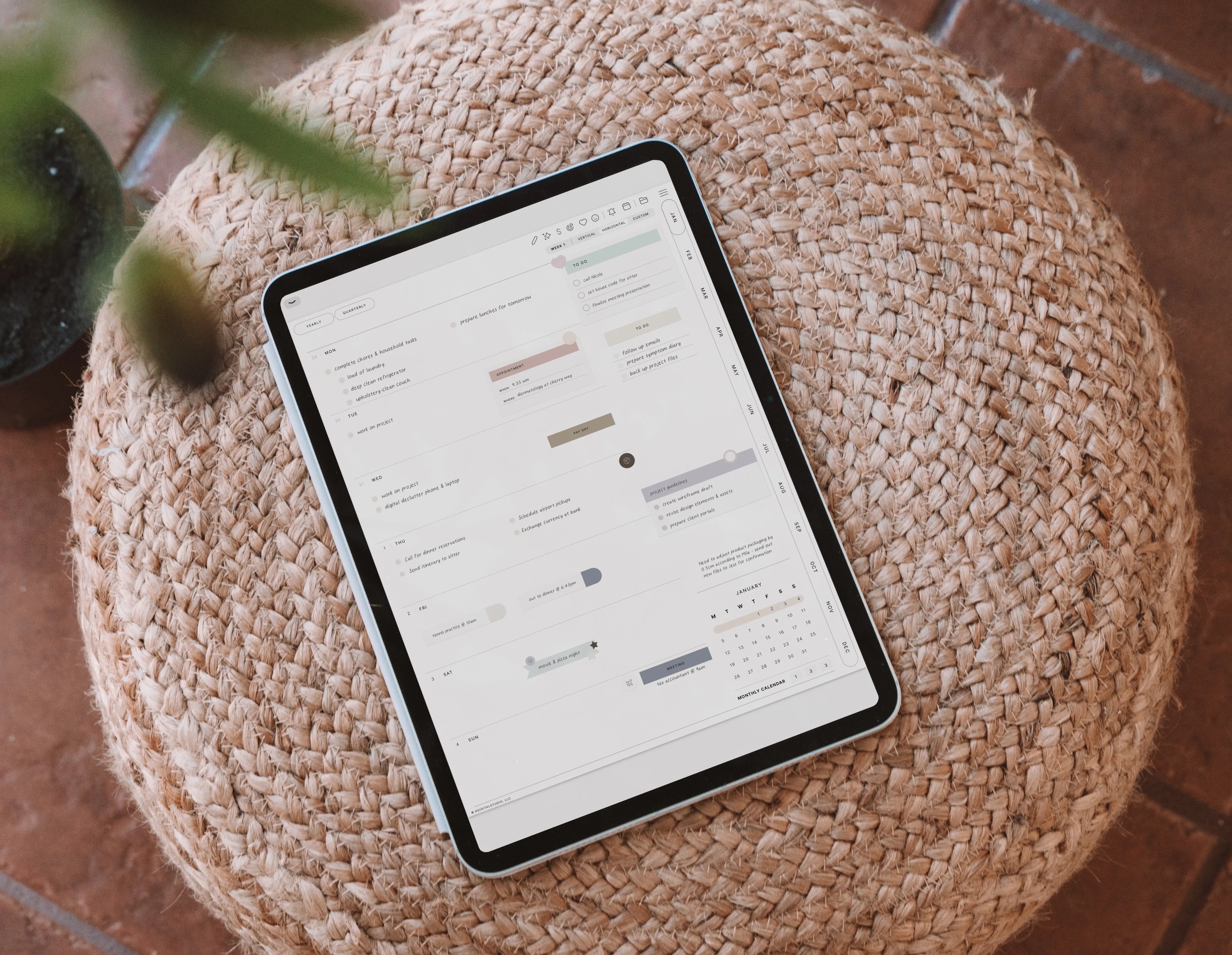
For tools and templates to pair with your Notion system, browse the KDigitalStudio shop — including digital planners that work alongside Notion for when you want something more structured for daily and weekly planning.
[collection=notion]

Share:
The Best Digital Planner Setup for ADHD — What Actually Helps
Digital Planner vs Paper Planner: Which One Is Actually Better?