


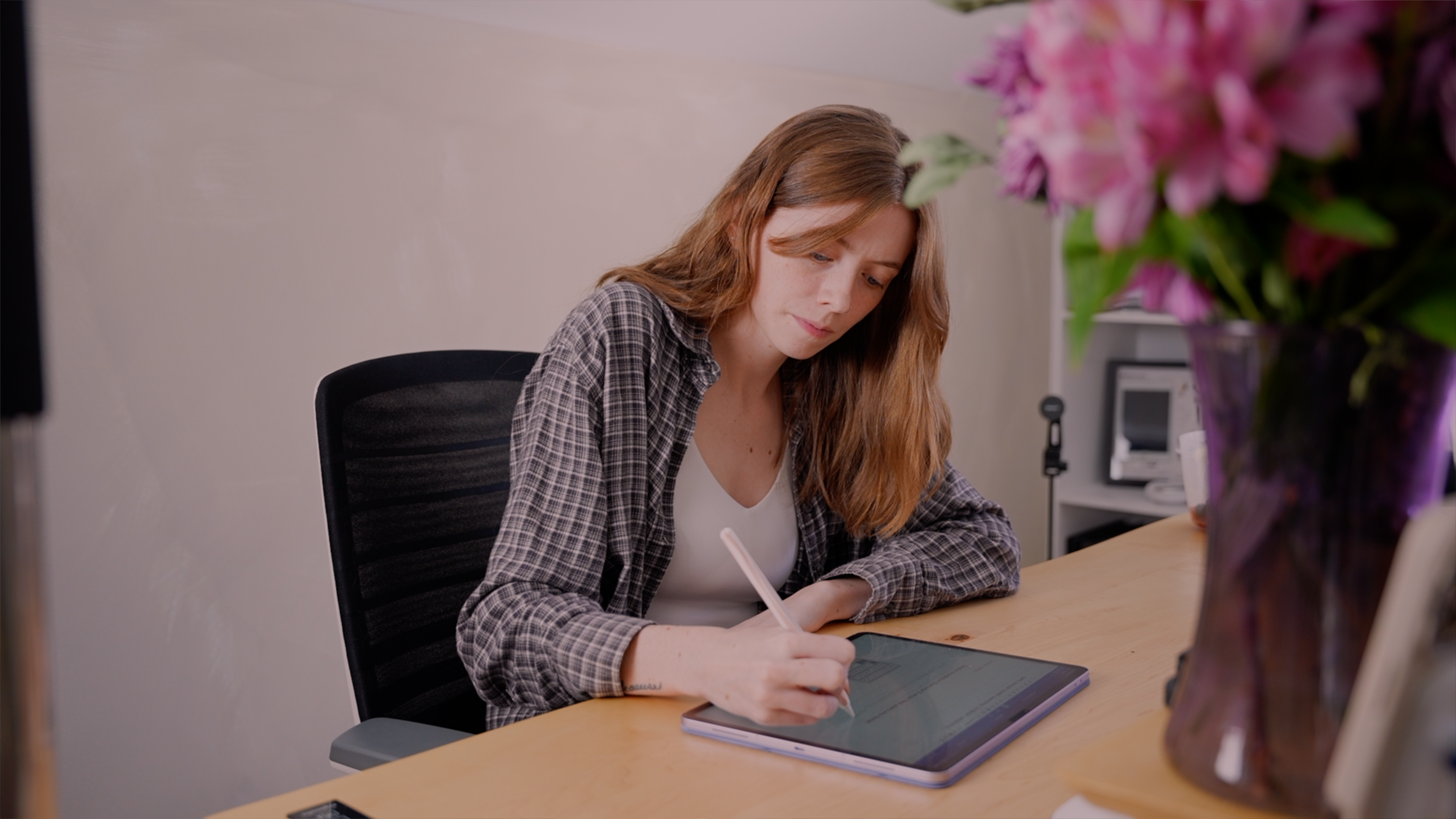
If you're considering making the switch to digital planning — or you've already switched and someone keeps telling you paper is better — this post is for you.
I've used both extensively. Here's an honest comparison, without the "you should do whatever works for you" non-answer.
The Case for Paper Planners
No battery required. Paper never dies, lags, or requires an update. If you find screens distracting or fatiguing, paper removes that friction entirely.
The writing experience is tactile. Many people find that physically writing something down helps them retain it better. There's research to support this — the act of handwriting engages the brain differently than typing.
It's always visible. A paper planner sitting open on your desk is a constant, passive reminder of what's on your plate. A digital planner has to be actively opened.
No learning curve. Pick it up, write in it. That's it.
The Case for Digital Planners
No starting over every year. With a digital planner, you duplicate the template, change the dates, and you're done. No buying a new planner and re-establishing your system from scratch.
Everything travels with you. Your planner, your notes, your collections — all on one device. No carrying multiple notebooks.
Endless customization. Change colors, fonts, layouts. Move things around. Digital planners adapt to how you work rather than forcing you into a fixed structure.
Searchable. In apps like GoodNotes, your handwritten notes become searchable. You can find things you wrote months ago in seconds.
No mistakes that matter. Made an error? Erase it completely. Crossed something out in a paper planner and it always looks messy.

Where Each One Falls Short
Paper: Takes up physical space. Wears out and needs replacing. Can't be searched or backed up. Easy to lose.
Digital: Requires a device and battery. Some people find writing on glass less satisfying than writing on paper. Apps can have a learning curve. There's an upfront cost to the hardware if you don't already own an iPad.
So Which One Should You Use?
Here's the honest answer: the best planner system is the one you'll actually use consistently. For some people, that's paper. For many people, especially those who already use an iPad daily, digital wins.
The bigger question to ask isn't "paper or digital" — it's "where am I most likely to check my plan?" If the answer is your iPad, a digital planner makes sense. If it's your kitchen table, paper might serve you better.

Want to Try Digital Planning?
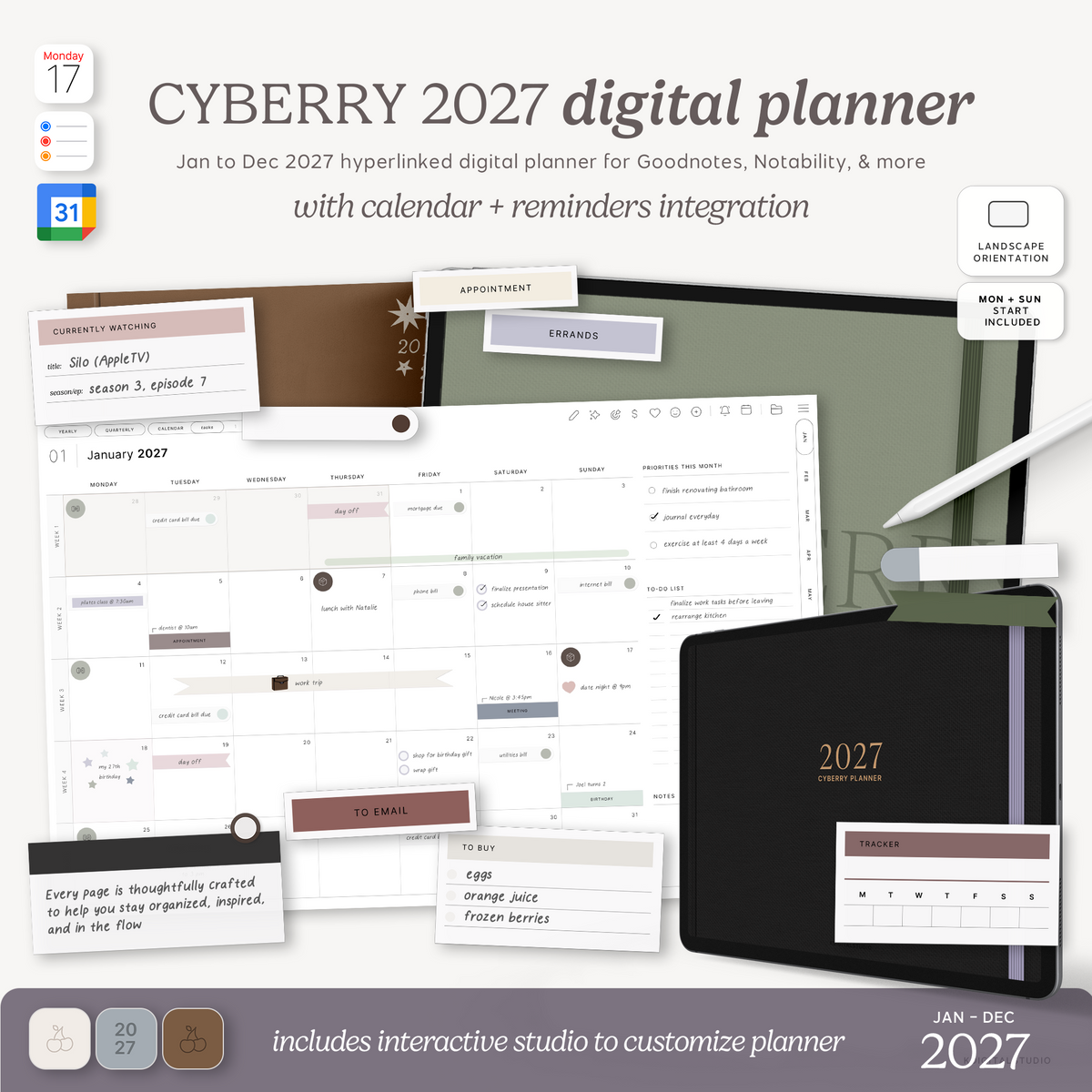
If you're curious about digital planning, the easiest place to start is with a simple template in GoodNotes or Notability. Browse the KDigitalStudio shop for planners designed for iPad — there are undated options if you want to test the format before committing to a full year.
[collection=planners]
Share:
How to Use Notion for Planning: The Complete Beginner's Guide
How to Design a Digital Planner in Keynote (Without Adobe)