


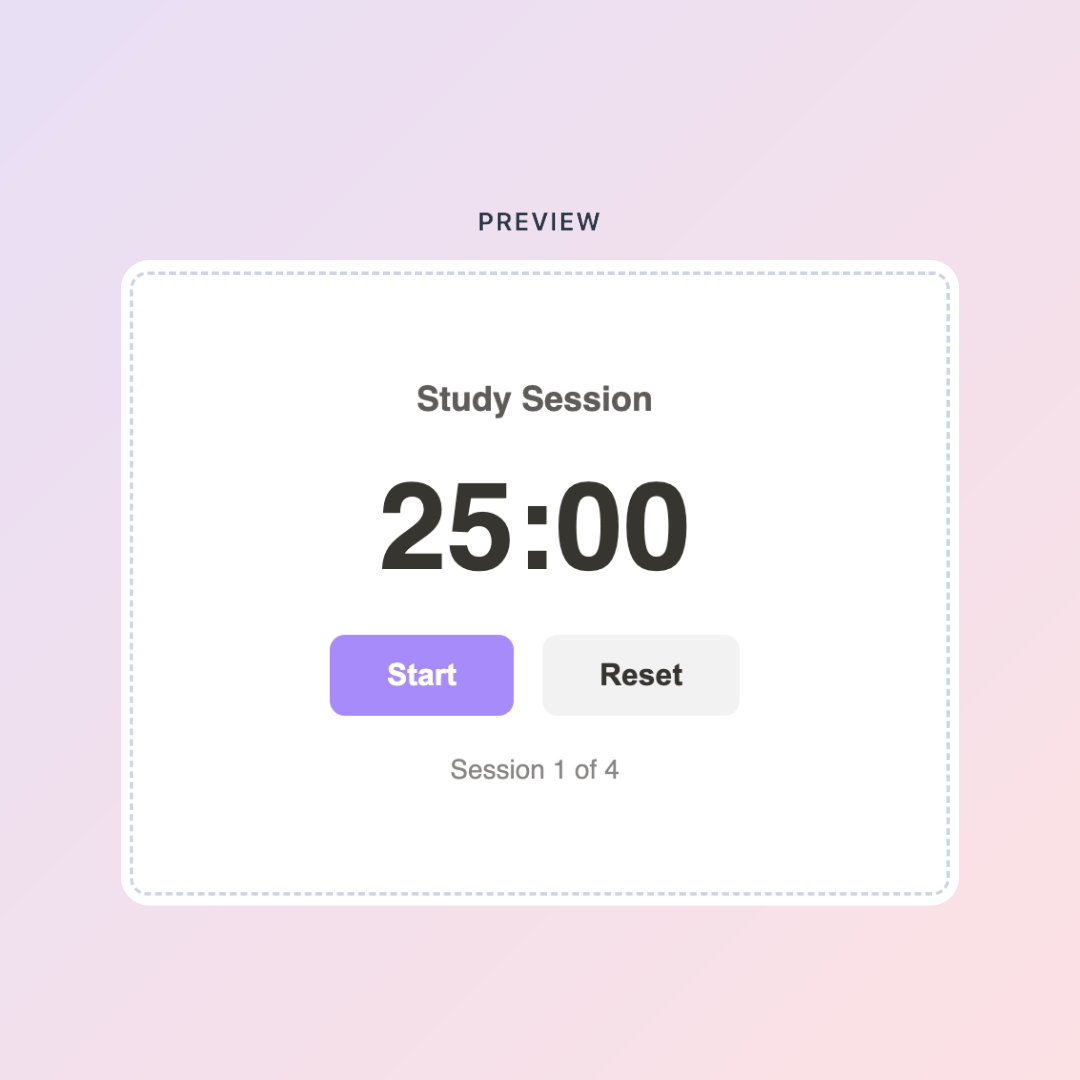
If you've ever opened Notion to do one thing and somehow ended up reorganizing your entire workspace instead — this post is for you.
The Pomodoro Technique is one of the most researched focus methods out there: 25 minutes of work, 5 minutes off, repeat. It's simple in theory, but most people either forget to start the timer, lose track of their sessions, or use a separate app that pulls them away from where they're actually working.
Here's the fix: an interactive Pomodoro Timer widget you can embed directly into your Notion workspace — no app switching, no subscriptions, no setup beyond a few clicks.
What the KDigitalStudio Pomodoro Timer Widget Does
The free Pomodoro Timer widget is built specifically for Notion. You customize it on our Digital Toolkit page — choose your work interval, break length, and color scheme — and then embed it directly into any Notion page using a simple embed block.
What you get:
- A live, interactive countdown timer that runs inside Notion
- Customizable session lengths (not locked into 25 minutes if that doesn't work for you)
- Visual design that matches your workspace aesthetic
- No account needed, no app to download
Create your free Pomodoro Timer → kdigitalstudio.com/pages/notion-pomodoro-timer

How to Embed It in Notion
- Head to the Pomodoro Timer page and customize your settings
- Copy the embed link generated for you
- In Notion, type
/embedand paste the link - Resize the embed block to fit your layout
That's it. Your timer lives inside your workspace now.
Getting the Most Out of Focus Sessions
The timer is the tool — the system is what makes it work. A few things that help:
Keep your focus page simple. The more you have on screen, the more you'll get distracted. A daily task list, your current project context, and the timer widget is enough.
Track your sessions. Even a simple tally of how many Pomodoros you completed in a day tells you a lot about where your energy actually goes.
Batch similar tasks. Deep work like writing or designing deserves its own session blocks. Admin tasks — emails, scheduling, responses — can share a session block.
If you want a workspace that does this tracking for you automatically — logging your sessions, your focus patterns, and your project output — the Creator Business Blueprint does exactly that.
[product=creator-business-blueprint-notion-system]
It's a full Notion operating system built for creators who are running their work like a business: content pipeline, project tracking, income logs, and focus systems all in one place.
The Bigger Picture
A Pomodoro timer is a starting point. The goal is building a workspace where focus is the default — not something you have to fight for.
Start with the free timer. See how your work changes when you actually protect your sessions. Then, when you're ready to build the full system around it, the templates are here.
[collection=notion]
Whether you're managing a content calendar, tracking a creative business, or just trying to stop losing things in a sea of Notion pages — there's a system in the collection that fits.
Ready to customize your timer? → kdigitalstudio.com/pages/digital-toolkit
Share:
The Free Notion Habit Tracker Widget That Actually Sticks
Add a Free Countdown Timer to Notion — For Goals, Launches, and Deadlines