


I Tested Every iPad Note-Taking App So You Don’t Have To
I have tested more iPad note-taking apps than I can count at this point. I used GoodNotes back in college while earning my chemistry degree, I use digital planners daily, and I have spent years figuring out what actually matters when you are handwriting on an iPad with an Apple Pencil.
The landscape has changed a lot. It is not just GoodNotes versus Notability anymore. Now there are more serious contenders, more overlap in features, and of course the flood of AI additions. So I put the top apps head to head: GoodNotes, Notability, Noteful, Noteshelf, OneNote, and FreeNotes.
I compared them on the things that actually affect day to day use: interface, toolbars, typed notes, layers, hyperlinks, handwriting feel, audio recording, AI features, pricing, and who each app is really best for.
Which iPad note-taking apps I compared
- GoodNotes
- Notability
- Noteful
- Noteshelf
- OneNote
- FreeNotes
And yes, at this point the note app naming situation is getting a little ridiculous.
Interface and organization: GoodNotes still feels the best to me
Interface is partly aesthetic, sure, but it also changes how fast and comfortably you can actually use an app. If the layout fights you, the app fights you.
Out of all of these, GoodNotes still has my favorite interface. It feels the most polished and the most intuitive. I like being able to organize notebooks into folders, customize those folders with colors and icons, and keep everything looking clean without sacrificing function.
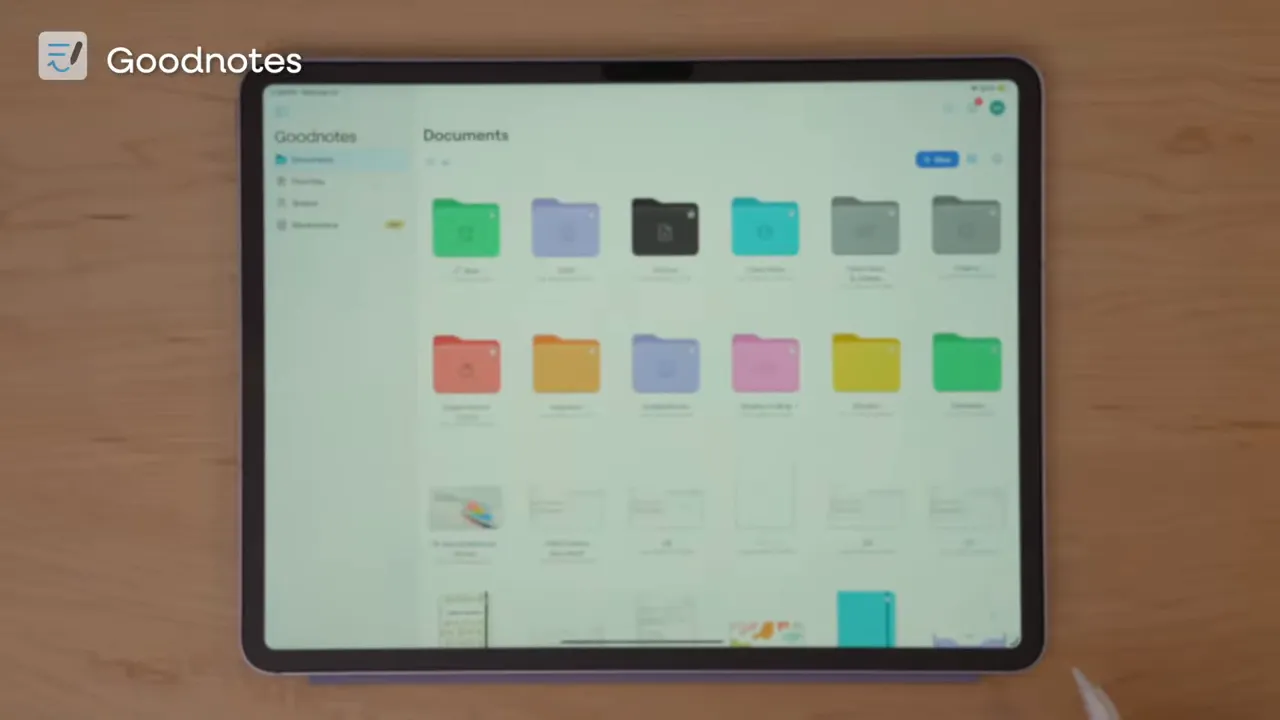
The newer toolbar design in GoodNotes has a more floating appearance, and some tools are more nested than they used to be, but I still prefer its more fixed structure overall. Basic actions like going home, changing templates, or exporting notes stay easy to reach at the top.
Noteful is the runner up for me. It feels the closest to GoodNotes in both layout and organization. It also has customizable folders with colors and icons, and the overall file management makes sense right away.
OneNote is the main outlier here. It does not organize notes with the same visible folder approach. Instead, it uses notebooks, sections, and tabs. That can feel very intuitive if your brain naturally works that way, especially for classes or projects, but it is definitely a different system.
All of these apps let you switch between different file views like list or folder-style browsing. At that point, the real difference is less about capability and more about feel.
Toolbars and core tools: mostly similar, with a few workflow differences
Once you are inside a note, the toolbars across these apps are more alike than different.
Most of them let you customize which tools appear in the toolbar. GoodNotes, FreeNotes, Noteshelf, Noteful, and Notability all do this. OneNote is the exception. Its toolbar is fixed, so you get what you get.
As for the tools themselves, nearly every app includes some version of:
- Pen tools
- Highlighter
- Eraser
- Lasso tool
- Laser pointer
- Image insertion
- Tape or cover tools in some form
- Ruler support
So for the basics, feature parity is much closer than it used to be. The bigger differences show up in how smooth those tools feel and how the app handles specific workflows.
Typed notes: Noteful and OneNote are easier, but GoodNotes is aiming bigger
I will be honest. The text tool in most handwritten note-taking apps is not great. These apps are clearly built first for handwriting, and you can feel that when you try to do a lot of typing.
That said, Noteful and OneNote have the least frustrating text tools out of this group. They are easier to work with, easier to edit, and less finicky when you want to set default fonts or take typed notes cleanly.
GoodNotes has taken a more interesting approach by adding a separate Text Document file type. This is not just dropping text boxes onto a handwritten page. It is a dedicated document type for typed notes.
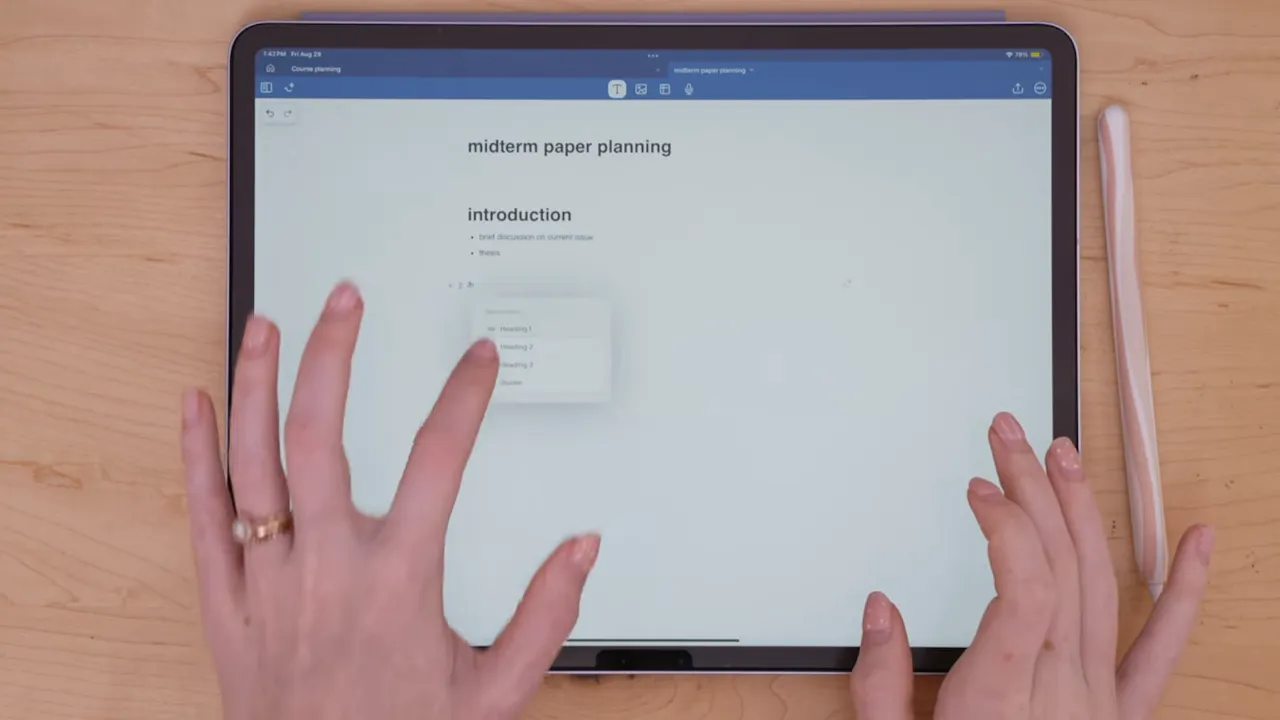
Inside that file type, you can type much more like you would in a standard document editor. There are slash commands for formatting things like:
- Headings
- Body text
- Checklists
- Images
- Tables
That is a pretty clear sign that GoodNotes wants to be more of an all around note-taking app, not just a handwriting app.
It is not trying to beat a full word processor, but it is definitely moving beyond the typical handwritten-notes-only lane.
Layers: one of the most useful features that still is not standard
One of the most important differences between these apps is something a lot of people do not think about until they use it: layers.
GoodNotes and Notability still do not have them. But Noteful and FreeNotes do, and layers can be incredibly useful for both studying and digital planning.
With layers, you can separate different parts of your notes such as:
- Images
- Highlights
- Handwritten annotations
- Comments
- Planner content
You can also show or hide layers, which makes self testing much easier. If your coursework includes diagrams, maps, labeled figures, or images you annotate heavily, this becomes a genuinely valuable feature.
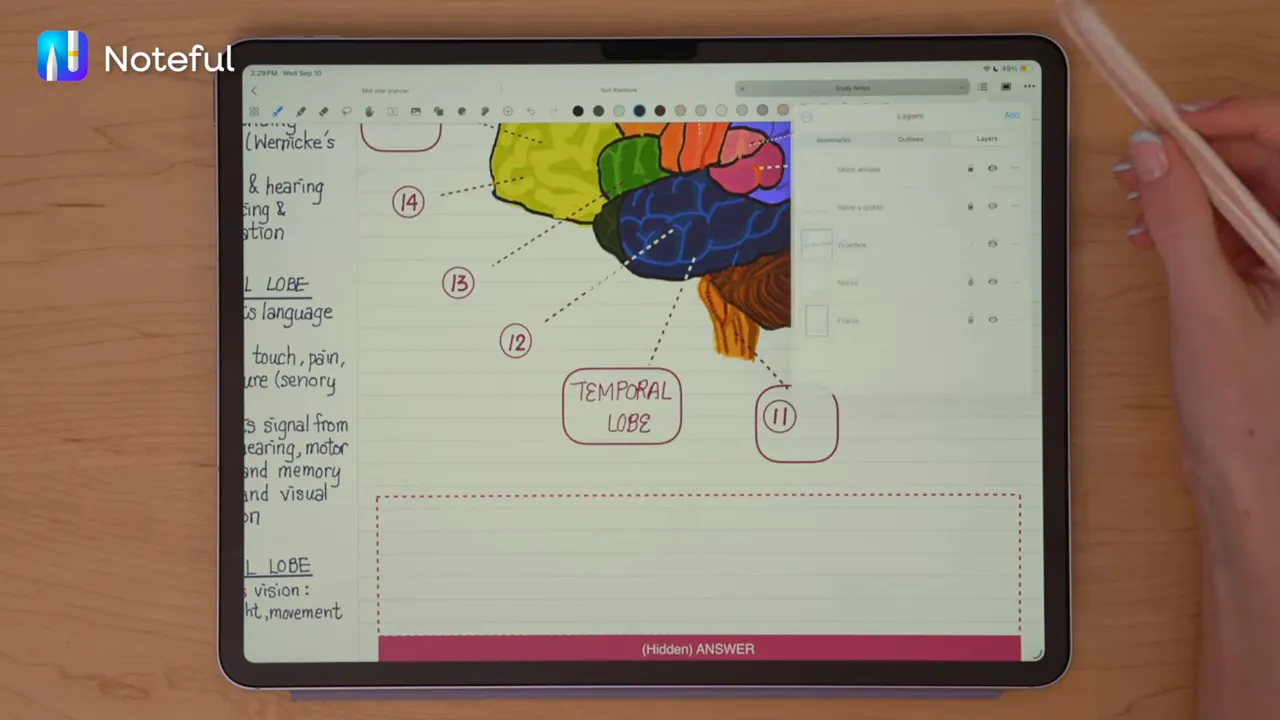
Layers are usually associated with design apps like Procreate, Photoshop, or Illustrator, but after using them in note-taking apps, I really think they deserve to become more mainstream here too.
Hyperlinks and reading mode: this matters more than people realize
This is a massive quality of life feature if you use digital planners, tabbed notebooks, or imported PDFs with built in links.
What matters is how easily an app lets you move between reading and editing. In other words, can you smoothly tap hyperlinks when you want to navigate, and just as easily write when you want to annotate?
GoodNotes
GoodNotes has separate reading and editing modes. If you want to tap hyperlinks normally, you need to be in reading mode. If you are in editing mode, links do not behave naturally. There is a workaround where you can long press links while using the lasso tool, but it is clunky.
Notability
Notability handles this a bit differently. You can use your finger to tap links, but if you want to write with the Apple Pencil, you need to switch tools appropriately. It works, but it still adds friction.
Noteshelf
Noteshelf also feels awkward here. It tends to rely on long pressing with the lasso tool to navigate links, and it does not feel especially intuitive.
FreeNotes
FreeNotes has a reading mode option, but it is not obvious unless you customize your toolbar. Once enabled, it helps, but the whole setup still feels clunkier than it should.
Noteful
Noteful handles hyperlinks the best out of the apps I tested. There is no awkward separation between reading and editing. The app does a really good job recognizing whether you are trying to navigate or write. Long press behavior is straightforward, and I do not find myself having to think about it much.
OneNote
OneNote is the weakest here by far if your workflow depends on linked PDFs. It does not support embedded PDF hyperlinks in the way the other apps do. That means digital planners and hyperlinked notebooks do not function as they normally would.
You can still import PDFs into OneNote and annotate them, but you lose that embedded hyperlink behavior. For some people, that will not matter. For anyone using planners, tabbed notebooks, or linked textbooks, it matters a lot.
This is one of the main reasons OneNote falls short for me as a pure iPad note-taking app.
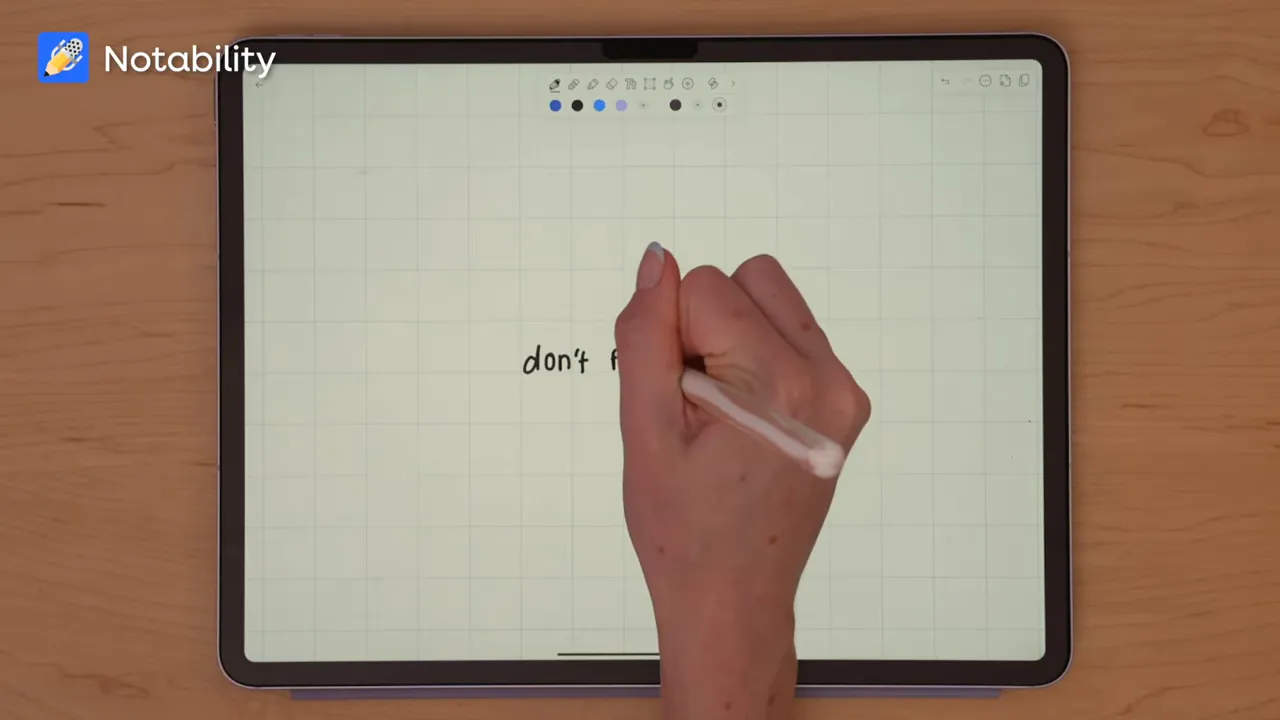
Handwriting feel: all of them are good, but not all are equal
If you are choosing an iPad note-taking app, the writing experience is probably the single most important thing. The good news is that all of these apps are decent to good for handwriting.
My handwriting looks pretty similar in all of them, and each app offers some combination of:
- Ballpoint or ball pen tools
- Pencil textures
- Fountain style pens
- Custom colors and stroke options
For the smoothest, most consistent handwritten notes, a ball pen style tool tends to work best across the board.
GoodNotes and FreeNotes also include extra pen stabilization settings, which is something I did not see in Notability, Noteshelf, Noteful, or OneNote.
If I had to rank the handwriting experience overall, I would put them roughly like this:
- GoodNotes and Noteful tied at the top for me
- FreeNotes and Notability close behind
- Noteshelf
- OneNote
That said, none of them are bad. The gap is more about refinement than basic usability.
The screen surface matters more than the app sometimes
One thing that affects handwriting in every app is not actually the app at all. It is the surface of the iPad screen.
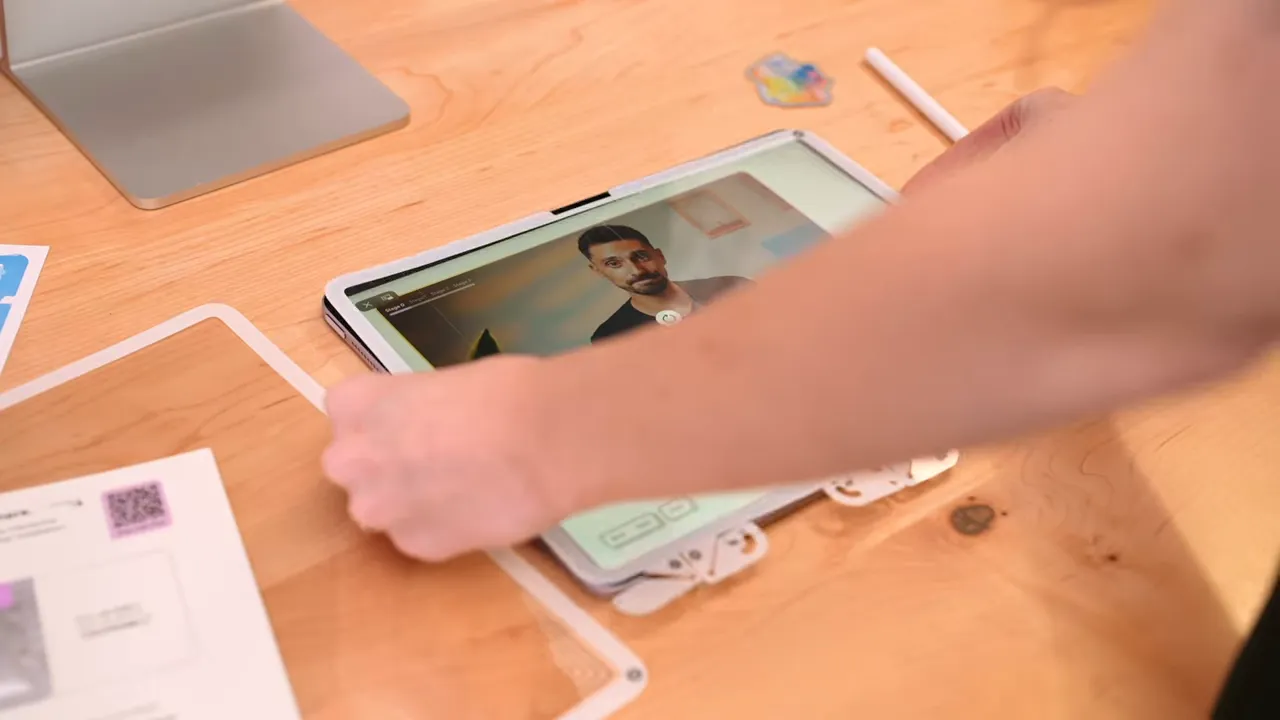
Writing directly on glass can feel slippery and unnatural. That was a huge issue for me until I started using Paperlike. It adds friction and resistance so handwriting feels more like pen on paper.
That paper feel comes from their nano dot surface technology, and for me it makes a real difference in control and comfort.
Paperlike 3 also improves the installation process with a butterfly application system, which helps avoid the classic screen protector nightmare of dust bubbles and crooked alignment.
If your handwriting feels off on iPad, I would seriously look at your screen surface before blaming your note-taking app.
Audio recording and ruler tools: no major separation anymore
There was a time when certain features made one app an obvious winner.
For example, Notability used to stand out because it was the only major app with audio recording. That is no longer the case.
Now all of the apps in this comparison include audio recording in some form. They all more or less do the same thing: record audio, play it back, and let you manage those recordings.
The same thing has happened with ruler tools. That used to be less common, but now it is showing up across the board as well.
So if audio recording or ruler support is on your checklist, you do not really need to choose your app based on that alone anymore.
AI features: GoodNotes is ahead, but I do not choose an app based on AI
The biggest modern differentiator is probably AI, or at least how aggressively apps are trying to integrate it.
GoodNotes is the leader here in my opinion. It offers AI tools for things like:
- Asking questions about open notes or files
- Summarizing notes
- Generating diagrams
- Getting math help
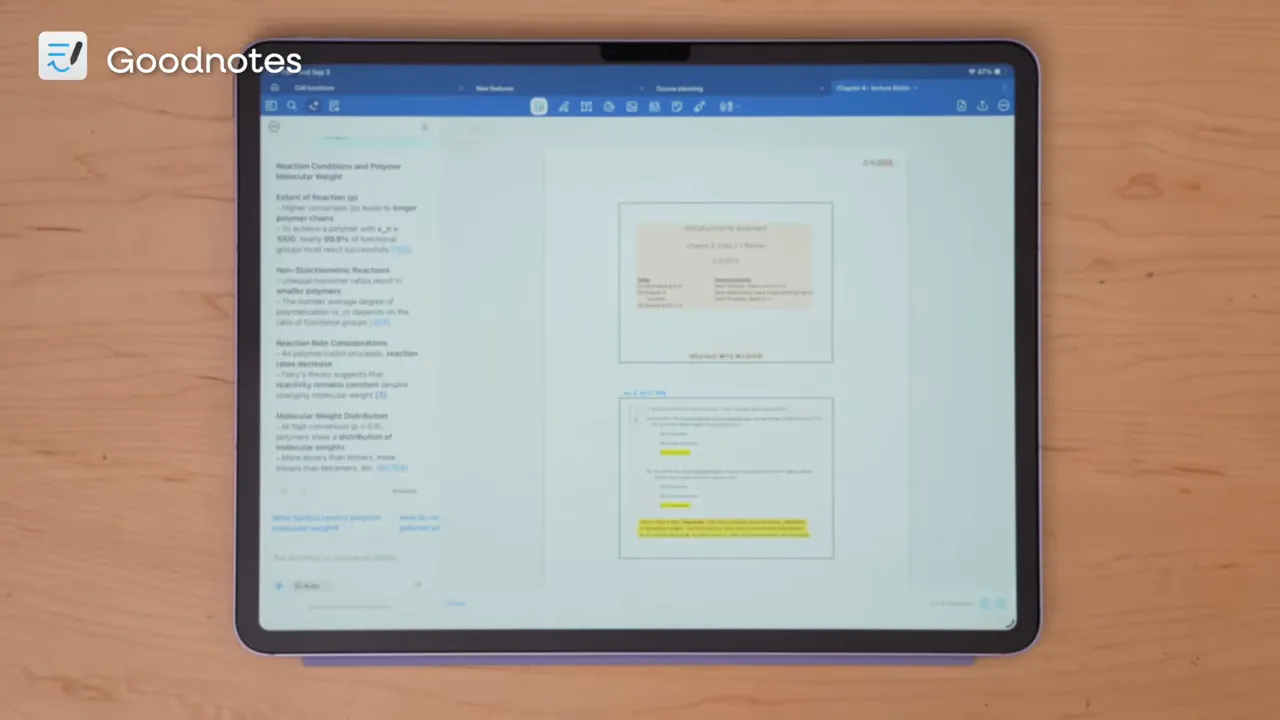
The good thing is these AI features are not especially pushy. They are tucked behind their own icons and easy to ignore if you are not interested.
Notability and Noteshelf also include AI related features, but they feel less built out by comparison and may come with limits depending on your plan.
FreeNotes appears to include an AI style study feature tied to the Feynman technique, though it requires upgrading, which feels a bit ironic for an app called FreeNotes.
Personally, AI is not something I use regularly in note-taking apps, and it is not something I prioritize when choosing an app for handwritten notes. Still, some people will absolutely find these features helpful for studying, reviewing, or quizzing themselves.
Just remember that anything AI gives you still needs to be verified.
GoodNotes extras that set it apart
Beyond AI, GoodNotes is adding features I am not really seeing matched the same way in the other apps.
Text Documents
Already mentioned, but worth repeating. This is a distinct file type for typed notes, not just a text box feature.
Whiteboard
GoodNotes now has a whiteboard file type that feels similar to Apple Freeform. It gives you a free canvas with diagramming tools and sticky notes for brainstorming, planning, and mind mapping.
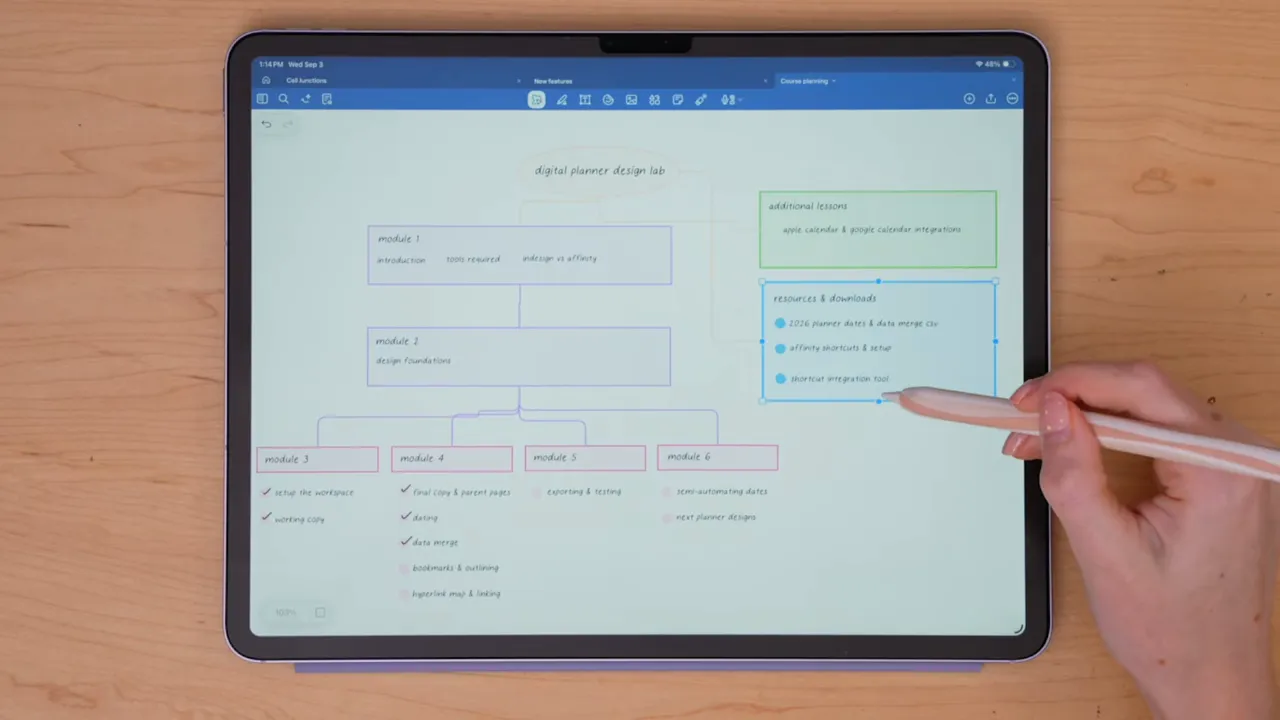
Yes, you could sketch out a mind map in any note-taking app. The difference here is that these objects are editable and interactive, and the canvas is designed for that kind of zoomable freeform work.
Study Cards
GoodNotes also includes a study card feature, which is not a standard capability in most other note-taking apps. If you like having flashcards built directly into your notes app, this is another point in its favor.
All of this reinforces what GoodNotes is trying to become: an all in one app for note-taking, studying, brainstorming, and collaboration.
Pricing: free options exist, but the popular apps usually cost money
Cost matters, especially for students.
Here is the broad pricing picture from what I tested:
- FreeNotes is free to use, with a one time $9.99 option to remove ads permanently
- OneNote is free for the core note-taking experience
- GoodNotes offers both subscription and lifetime payment options
- Notability has a free tier, but popular features are locked behind paid plans
- Noteshelf has premium upgrade paths, though its website pricing is not especially transparent
- Noteful has one of the clearest and most affordable upgrade options, with a one time payment of $5.99 for full access
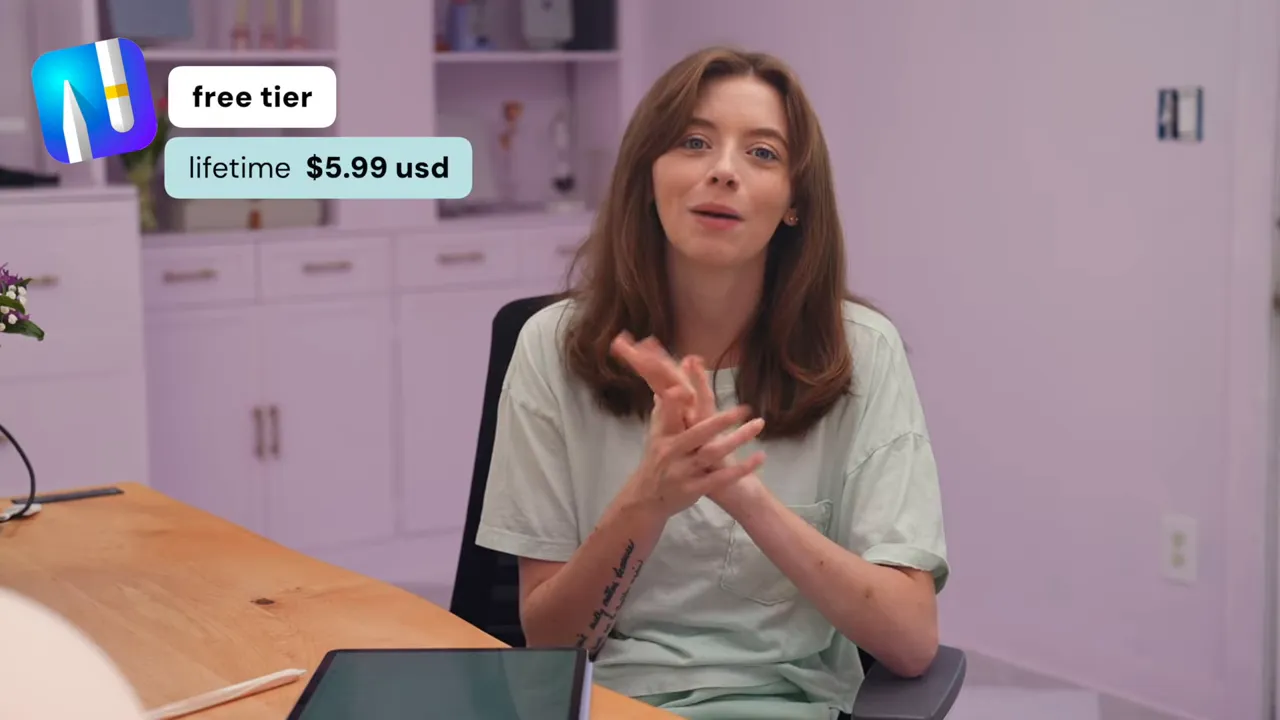
What I do appreciate is that all of these apps can be tried in some form before fully committing. That matters because preference plays a huge role here. You may know within ten minutes whether an app feels right to you.
My honest picks: which iPad note-taking app is best for who
Best all around for most students: GoodNotes
GoodNotes is still the app I think makes the most sense for a lot of people, especially students who want one app that can handle handwritten notes, typed notes, brainstorming, study cards, and collaboration.
It is also one of the most beginner friendly. The interface is clean, intuitive, and easy to grow into.
Best for cross platform collaboration: OneNote
OneNote is the one I would choose when collaboration across devices and operating systems matters most.
I had to use OneNote in one of my most technical lab courses in college, and it worked really well for that context. My professor could share class notebooks with procedures, manuals, and safety information, and everyone could access them whether they were using an iPad, another tablet, or a computer.
So while OneNote is not my favorite pure handwriting app, it is still a strong option for highly collaborative and cross platform academic work.
Best free option for a classic iPad note-taking feel: FreeNotes
If you want the typical handwritten iPad note-taking experience without paying upfront, FreeNotes is a very solid place to start.
You get a simple setup, core tools, and even layers, which is impressive for a free option.
Best simple app with layers: Noteful
Noteful is such an easy app to like. It is simple, affordable, clean, and has one of the features I care about most that other major apps still lack: layers.
If you want a no frills app that still feels polished and capable, Noteful is absolutely worth downloading and trying.
For longtime iPad note-takers who like established apps: Notability and Noteshelf
Notability and Noteshelf still belong in the conversation because they are established, capable apps with broad feature sets. If you already like their workflows or want specific features they offer, they can still be great fits.
For me, though, they do not stand out quite as strongly as GoodNotes or Noteful in this current lineup.
The bottom line
If you are overwhelmed by how many iPad note-taking apps exist now, that is fair. There are a lot of them, and the overlap in features is bigger than ever.
My biggest advice is simple: download a few, test them, and pay attention to workflow friction.
Ask yourself:
- Do I need handwritten notes, typed notes, or both?
- Do I use hyperlinked planners or PDFs?
- Do layers matter for my classes or planning setup?
- Do I need cross platform collaboration?
- Do I want an all in one app or a simpler focused app?
- Am I trying to stay free or am I okay paying for polish?
If I had to narrow it down most simply:
- Choose GoodNotes for the best all around student experience
- Choose OneNote for collaboration across devices
- Choose FreeNotes if you want to spend nothing
- Choose Noteful if you want simplicity plus layers at a low cost
There really is no single best iPad note-taking app for everyone. But there is almost definitely one that fits your workflow better than the rest.

Share:
The Complete Free Notion Widget Toolkit: 5 Widgets to Build Your Perfect Workspace
The Best Online Course Platform for Small Businesses & Creators in 2026