


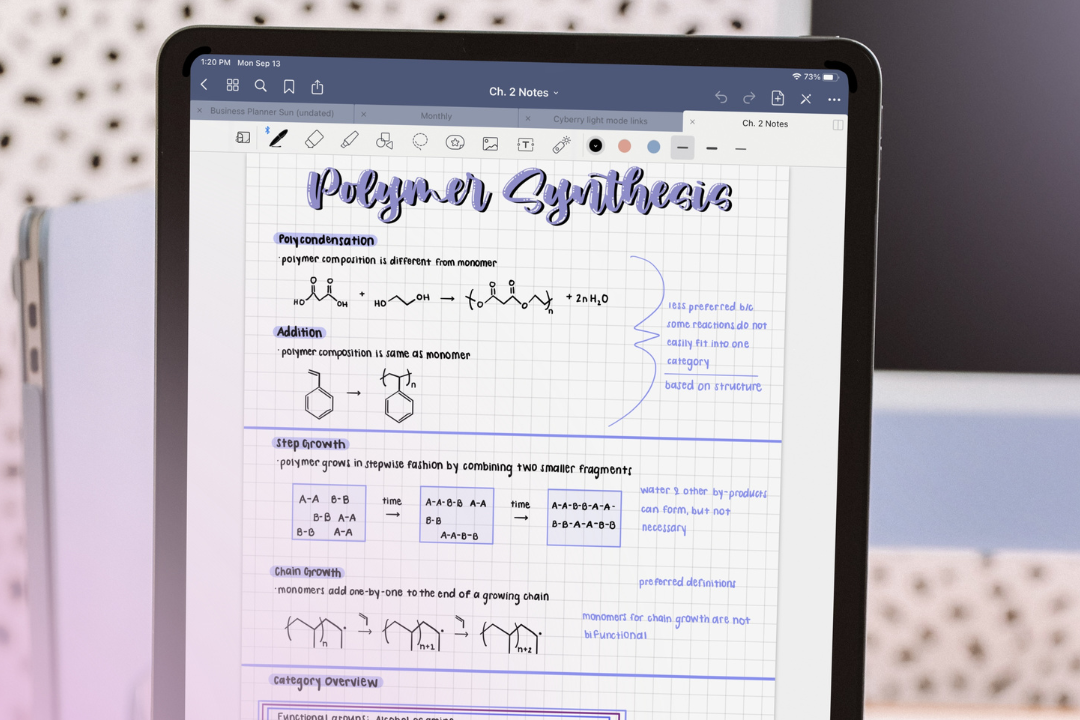
GoodNotes is a popular note-taking app for iPad that offers a powerful combination of handwritten notes, typed text, and multimedia support. Whether you're using GoodNotes for school, work, or personal use, there are many tips and tricks that can help you make the most of the app. Here are ten of the best GoodNotes tips and tricks.
Use the Apple Pencil for handwriting
GoodNotes supports handwriting with the Apple Pencil, which makes it easy to take notes, create sketches, and annotate PDFs. The Apple Pencil provides a natural and intuitive writing experience, so make sure to take advantage of it.

Organize your notes with folders
GoodNotes allows you to organize your notes into folders, making it easy to find what you're looking for. Create folders for each subject, project, or category to keep your notes well-organized.
Take advantage of templates
GoodNotes includes a variety of templates for different types of notes, including lined paper, grid paper, and checklists. These templates can save you time and provide a consistent look for your notes.
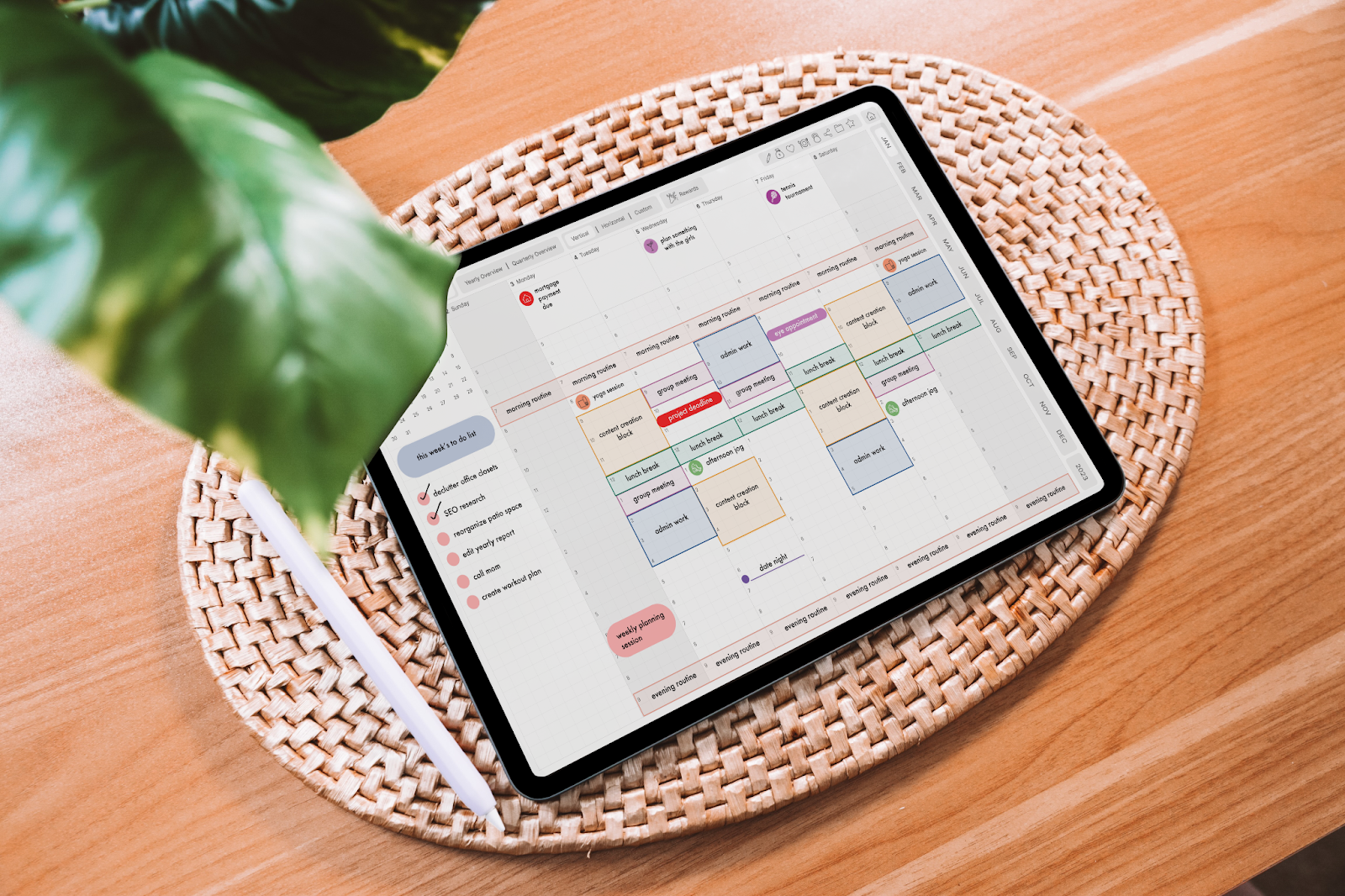
Use the search feature
GoodNotes includes a powerful search feature that allows you to quickly find what you're looking for. You can search for text, handwritten notes, and even sketches.
Use the pen tool for precise drawings
The pen tool in GoodNotes provides a high level of precision, making it ideal for technical drawings, diagrams, and flowcharts. Experiment with different pen sizes and colors to find the perfect look for your drawings.
Import PDFs and images
GoodNotes allows you to import PDFs and images, making it easy to annotate and organize important documents. You can even import a whole folder of PDFs at once.

Use the lasso tool to move objects
The lasso tool in GoodNotes allows you to select and move objects, including handwritten notes, sketches, and images. This can be particularly useful when you need to make changes to your notes or rearrange objects on the page.
Use the color highlighter
GoodNotes includes a color highlighter that can be used to highlight important text or draw attention to specific parts of your notes. Try using different colors to categorize your notes or create visual aids.
Use the palm rejection feature
GoodNotes includes a palm rejection feature that prevents accidental marks from your hand while writing. This can be particularly useful for left-handed users.

Backup your notes
GoodNotes allows you to backup your notes to your iPad, computer, or cloud storage services like Dropbox, Google Drive, or OneDrive. Regular backups will ensure that your notes are safe and secure.
In conclusion, GoodNotes is a powerful note-taking app for iPad that offers a wide range of features and customization options. By taking advantage of the tips and tricks in this blog post, you can make the most of GoodNotes and be well on your way to a more productive and organized note-taking experience.
Share:
Procreate for Beginners on iPad
7 Ways You Can Incorporate Your iPad into Your Morning Routine
6 comments
Muito bom
..
I love this app and these tips but how do you change the font in this new 2023 version?
The first time you have a chance to get your hair done you
Y The hhybybh