


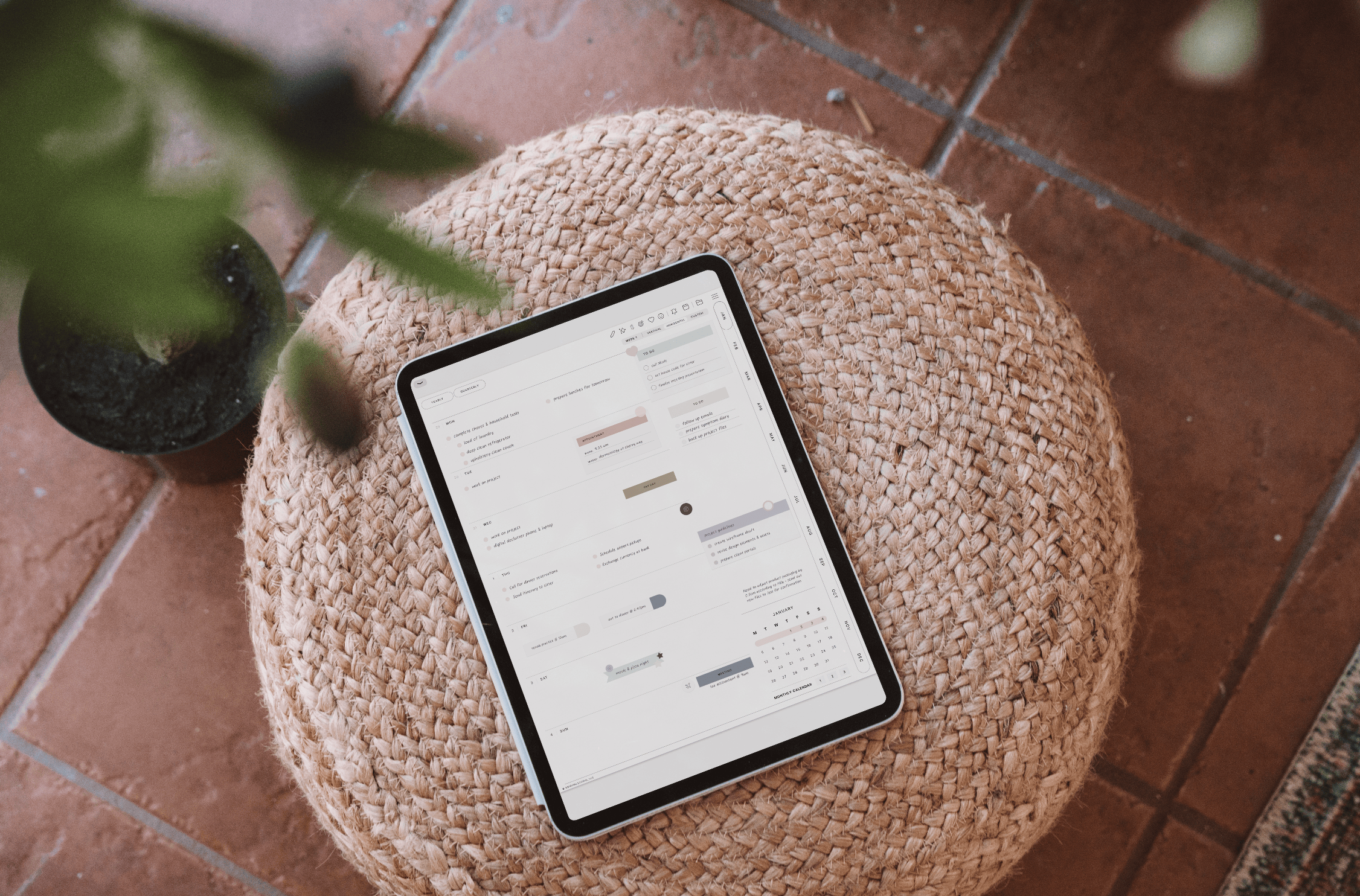
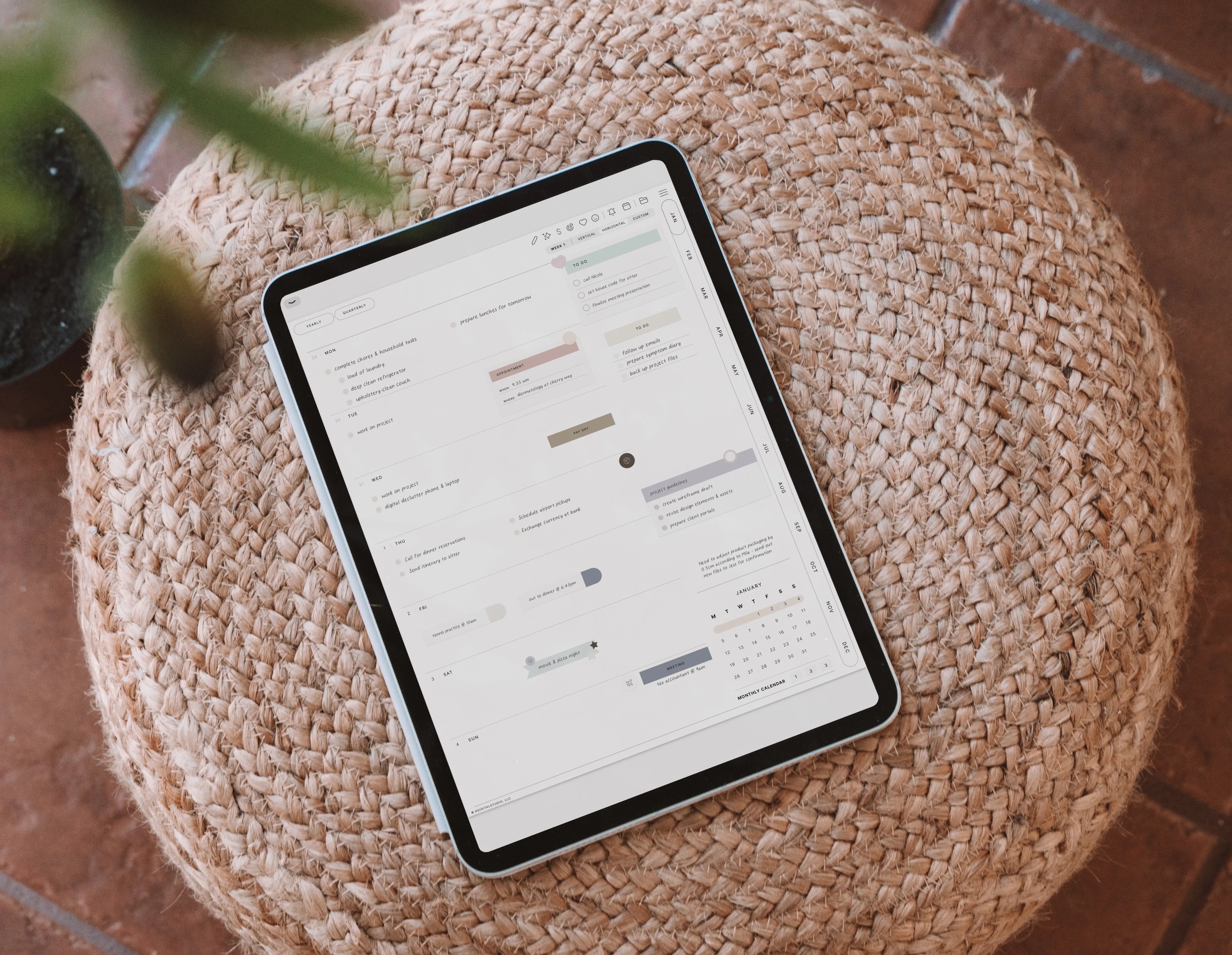
Digital planners have transformed how people organize their time and tasks, blending traditional structure with modern technology. They offer a versatile approach that suits busy lifestyles by combining functionality with the convenience of digital tools. This comprehensive guide will walk through the essentials of creating your own digital planner, covering everything from design tips to software choices, enabling seamless planning whether for daily goals, weekly schedules, or broader monthly overviews.
What Is a Digital Planner and Why Create One?
A digital planner is an electronic version of a traditional paper planner, designed to be used on tablets, iPads, smartphones, or computers. Unlike paper planners, digital planners offer interactivity such as clickable tabs, hyperlinks for quick navigation, and the ability to customize layouts dynamically. They often come as hyperlinked PDFs or app-based planners that integrate with note-taking and productivity tools.
Among the key advantages are portability—no need to carry bulky books—customization, which allows adapting pages to different needs, and eco-friendliness by reducing paper usage. Digital planners also integrate multimedia elements and reminders, features unavailable in conventional planners.
Common use cases include daily planners for task management, weekly planners for balancing work-life priorities, monthly planners for big-picture goal tracking, and specialized pages like habit trackers or budget sheets. This guide sets the stage for exploring how to create your digital planner with practical software options, design strategies, and export techniques to suit your personal or professional needs.
Planning Your Digital Planner: Key Features and Layout
Starting a digital planner requires outlining the sections that best support your organization style. Popular components include calendars for date tracking, to-do lists for actionable items, habit trackers for wellness or productivity goals, note sections, and sometimes inspirational quotes or goal-setting pages.
Choice of spread formats—daily, weekly, or monthly—depends heavily on how granular your planning needs are. Daily spreads work well for detailed scheduling, while monthly layouts offer a broader overview useful for long-term planning. Some opt for undated pages to maintain flexible use, while others prefer dated templates ensuring chronological order.
Layout orientation is another decision: vertical formats are great for scrolling on mobile devices, while horizontal layouts offer a panoramic view on tablets. Both dated and undated planners have trade-offs around usability and repeatability. The best approach tailors to the target audience’s preferences and habits—whether students, creatives, or professionals.
High usability stems from understanding end-user needs: for example, stylus-friendly planners benefit those who prefer handwriting, while hyperlink-rich planners support quick navigation for heavy users.
Best Software and Apps for Creating Your Digital Planner
Selecting the right software hinges on user experience level and the planner's intended complexity. Canva shines with its user-friendly interface and extensive planner templates, making it ideal for beginners and those prioritizing ease of use and quick customization. Its drag-and-drop design and built-in hyperlinking features simplify how to make a digital planner with visual appeal.
Adobe InDesign offers unmatched control for advanced designers, supporting detailed layout work and complex hyperlinking but demands a steeper learning curve and subscription cost. Similarly, Affinity Publisher strikes a balance between professional features and affordability, accommodating detailed digital planner design without ongoing fees.
Apple Keynote, Google Slides, and Microsoft PowerPoint provide flexible presentation-based environments with hyperlinking capabilities, suitable for those comfortable with slide formats. These apps are accessible for most skill levels and support exporting interactive PDFs.
For actual planner use, apps like GoodNotes, Notability, and Samsung Notes are often recommended due to their compatibility with hyperlinked PDFs and stylus support, allowing users to interact with the planner effectively.
| Software/App | Ease of Use | Hyperlinking Support | Cost | Best For |
|---|---|---|---|---|
| Canva | High | Yes | Free/Paid | Beginners, quick templates |
| Adobe InDesign | Moderate to High | Advanced | Subscription | Professional design |
| Affinity | Moderate | Yes | One-time | Intermediate to pro |
| Apple Keynote | Moderate | Yes | Free | Apple users, presentations |
| Google Slides | Moderate | Yes | Free | Collaborative, cloud-based |
| PowerPoint | Moderate | Yes | Paid | Windows users, presentations |
Choosing or Creating a Digital Planner Template
Beginners often benefit from starting with a premade digital planner template, which offers a ready-made structure that can be customized with colors, fonts, and interactive features. Templates save considerable time and provide tested usability, perfect for users aiming to create without building every element from scratch.
Finding the ideal digital planner template involves searching marketplaces, design sites, or creative platforms that offer styles matching your aesthetic—whether minimalist, colorful, or goal-oriented. Pay attention to whether the template includes tabs or hyperlinks to enhance navigation.
When customizing, maintaining cohesion across page layouts is vital. Limit font variations to two or three and use consistent color palettes to reinforce usability and aesthetic appeal. Incorporating interactive elements like clickable tabs and buttons elevates the user experience.
By strategically adjusting premade templates, it remains easy to create a planner that feels personalized while ensuring it remains functional and visually balanced.
Designing Your Digital Planner from Scratch
Embarking on a planner design from scratch starts with setting document dimensions that fit typical usage—commonly A4 or letter size for print or screen reading. Square or custom aspect ratios might also work depending on the device or user preferences.
Building planner pages involves combining shapes, text boxes, colors, and images thoughtfully. Start with basic frames for calendars or task lists, then strategically place titles and date fields. Using layering and grouping can simplify adjustments later on.
Creating monthly spreads typically involves grid layouts highlighting dates, which can be hyperlinked to daily pages for deeper detail. Weekly and daily spreads focus on time blocks, priorities, or notes, designed to minimize clutter and maximize clarity.
Core planner design principles—ample whitespace, visual balance between text and graphical elements, and high readability—ensure the planner remains inviting and usable. For instance, a clean header with bold date text followed by intuitive content sections guides the eye naturally.
How to Add Interactive Elements and Hyperlinks
Hyperlinks are the backbone of an interactive digital planner, enabling users to jump quickly between months, weeks, or specific daily pages without scrolling endlessly. Tabs often serve as navigation menus linked to main sections of the planner.
To add hyperlinks in Canva, select the element, then use the link feature in the interface to connect pages or external URLs. Adobe InDesign users employ the Hyperlinks panel, allowing precise link creation and management. Apple Keynote allows hyperlinks through object linking options in the inspector pane.
Testing hyperlinks is crucial: after linking, export the planner as PDF and open it in the intended app to verify navigation. Troubleshoot broken links by checking link targets and reapplying them if unresponsive. Ensuring every interactive element works maintains user satisfaction and planner reliability.
Exporting Your Digital Planner
Exporting your planner usually involves saving as a PDF with all hyperlinks intact, a format compatible with most note-taking apps like GoodNotes and Notability. Choose PDF settings that preserve image quality and embed fonts to avoid display issues on different devices.
Before distribution, test the exported planner extensively across devices such as iPads, tablets, and smartphones to ensure functionality and readability. Compatibility varies slightly between apps, so confirming responsiveness on multiple platforms is advisable.
Other export options include JPEG or PNG for single pages, but these lack hyperlink functionality. For planners intended for selling or sharing, PDFs remain the most practical file format due to interactivity and accessibility.
Tips to Optimize Your Planner Design for Usability and Aesthetics
Font choice profoundly affects readability and the mood of your digital planner. Sans-serif fonts generally offer cleaner views on screens, while selecting color schemes with good contrast improves visibility and reduces eye strain. Subdued palettes create calm, whereas bright tones energize the experience.
Consistent iconography adds clarity—using the same style and size of icons across pages helps users quickly interpret functions. Establishing clear visual hierarchy with headings, subheadings, and body text ensures important content stands out and guides navigation smoothly.
Creativity and functionality should balance; decorative elements must never overwhelm practical use. Leave appropriate whitespace around content blocks to avoid clutter. Iterative testing and feedback gathering from target users can reveal pain points and refinement opportunities.
How to Use Your Digital Planner Effectively
Effective use starts with setting realistic schedules, breaking down goals into manageable daily or weekly tasks. Incorporate habit trackers to monitor progress and motivate consistency. Syncing your planner with digital calendars and reminder apps streamlines notifications and avoids missed deadlines.
Maintaining motivation benefits from setting milestones and reviewing achievements periodically. For enhanced engagement, consider embedding multimedia elements such as audio notes or video links, if the platform supports these features, making planning sessions richer and more personalized.
How to Sell Your Digital Planner: A Beginners Guide
The growing demand for digital planners opens exciting opportunities to sell your creations on platforms like Etsy, Shopify, or creative marketplaces. Starting with unique, original designs boosts copyright clarity and customer appeal; however, using premade templates with substantial customization is also common.
Marketing your digital planner hinges on identifying a niche audience and employing SEO strategies centered on relevant keywords like "make digital planner" or "weekly planner." High-quality preview images and detailed descriptions enhance buyer confidence.
Offer commonly used file formats such as hyperlinked PDFs for ease of use. Deliver digital downloads via secure, automated platforms ensuring instant customer access, which improves user experience and repeat sales.
Frequently Asked Questions About Creating Digital Planners
How Do I Build My Own Digital Planner?
Begin by planning your content sections and deciding layout types (daily, weekly, monthly). Set document dimensions suited for your target devices. Design pages using shapes, text, and colors while keeping usability principles in mind. Add hyperlinks for navigation within your planner using software like Canva or Adobe InDesign. Finally, export as a hyperlinked PDF, test across devices, and you're ready to use or share your planner.
What Is the Best App to Make a Digital Planner?
The best app depends on skill and planner complexity. Canva is favored for its ease and template variety, ideal for newcomers or quick projects. Adobe InDesign suits professionals seeking precision and advanced features. Apple Keynote, Google Slides, and PowerPoint serve well for users familiar with these tools and wanting straightforward hyperlinking. Each offers trade-offs in learning curve, cost, and flexibility.
Is Making Digital Planners Worth It?
Creating digital planners can generate supplemental income and unleash creativity, especially in niche markets or for users offering unique designs. While initial design takes time, premade templates and software tools ease production. Plus, digital planning suits many digital-native users, increasing demand and long-term value.
Can You Use Canva to Create a Digital Planner?
Yes, Canva supports building digital planners with customizable templates, drag-and-drop elements, and hyperlinking features. It enables users to design, style, and export interactive PDFs compatible with most digital note-taking apps. Its intuitive interface makes Canva a popular choice for beginners and pros alike looking to create their own planner easily. However, it is very limited. I recommend starting with Affinity as a free option, or Adobe InDesign as a paid option. This is exactly what my course Digital Planner Design Lab covers.
Additional Resources and Tools to Get Started
Explore free planner templates from sites like KDigitalStudio for inspiration. Design tutorials on YouTube and courses on platforms such as Skillshare provide step-by-step guidance. Accessories like styluses and paper-feel screen protectors improve handwriting experience on tablets.
Join communities on social media or forums where digital planner creators share tips and challenges. If selling, tools like Google Analytics or Gumroad dashboards help track downloads and customer engagement, optimizing your offerings effectively.

Share:
How I Set Up My Digital Reading Journal 📚 (Plus a Shortcut That Saves So Much Time)
How to Make a Digital Planner: Step-by-Step Guide for 2026