



Designing a personalized digital planner unlocks new levels of organization and productivity tailored to exact needs. With increasing demand for flexible planning solutions, learning how to create a digital planner enables individuals and professionals to stay on top of tasks, appointments, and goals in a sleek, interactive format. Whether it's a daily planner or an extensive monthly overview, custom planners adapt to varying schedules and preferences, offering a modern alternative to traditional paper planners. This guide walks through essential tools, software options, and detailed steps to craft a planner that truly fits.
What Is a Digital Planner and Why Use One?
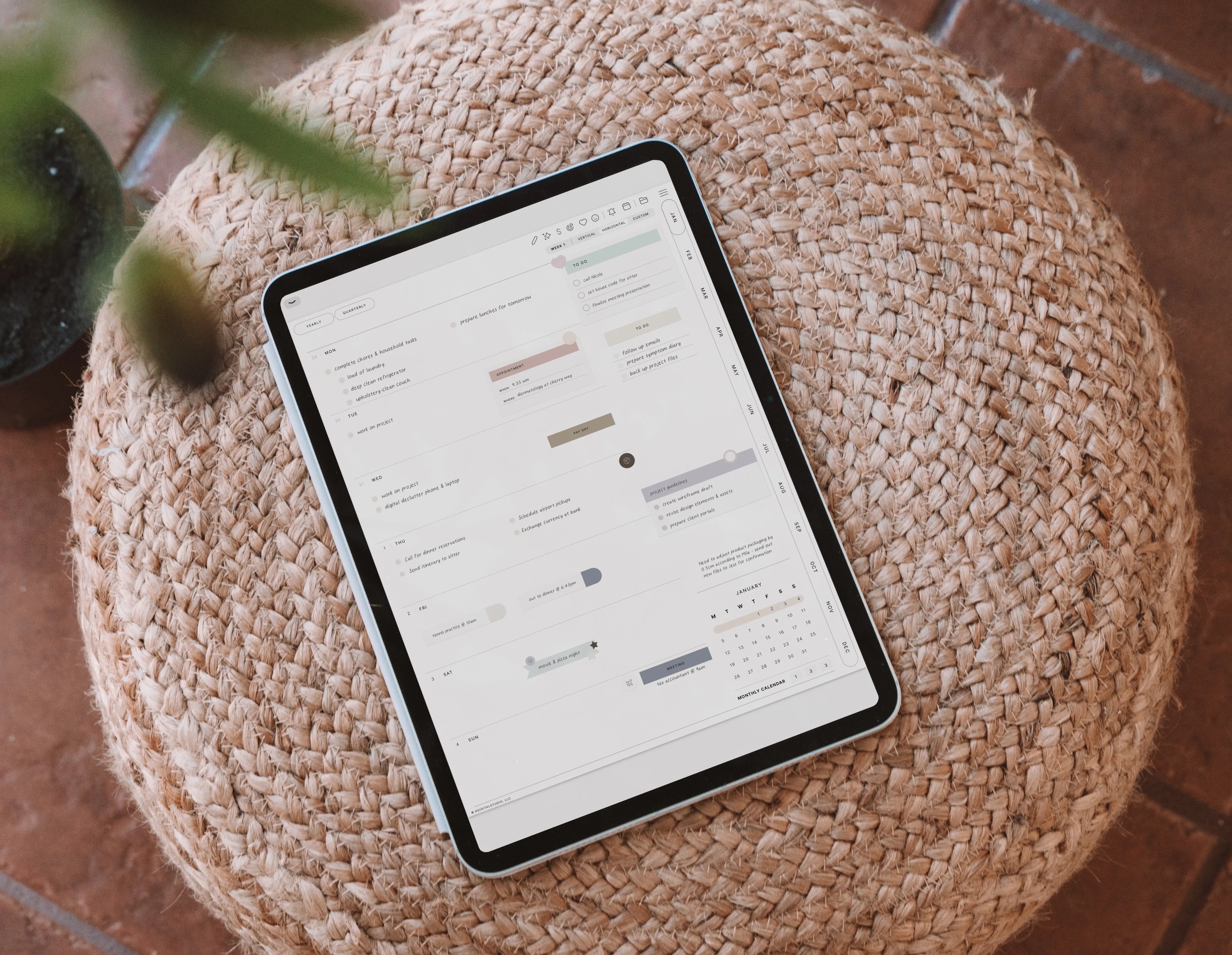
A digital planner is an interactive, electronic version of a traditional planner designed to be used on tablets, smartphones, or computers. Unlike paper planners, digital planning offers more flexibility with features like clickable tabs, hyperlinks, and customizable layouts. This adaptability enhances productivity by allowing seamless navigation through daily, weekly, or monthly planner sections without physical bulk. Common use cases include organizing work tasks, tracking habits, and setting reminders—all consolidated in one device. Making your own digital planner means creating a tool perfectly suited to your unique workflow and lifestyle, blending form and function effortlessly.
Essential Tools Needed to Make a Digital Planner
Creating and effectively using a digital planner requires certain hardware and accessories. Primarily, a tablet, computer, or smartphone serves as the canvas for digital planning. Note-taking apps such as GoodNotes or Notability are vital since they enable editing, annotation, and smooth interaction with planner files. Optional yet useful accessories include a stylus for handwriting input and paper-feel screen protectors that mimic the texture of paper, improving writing comfort and precision. These tools collectively ensure a fluid design and user experience when making and utilizing digital planners tailored to your needs.
Choosing the Right Software to Create a Digital Planner
Designing a digital planner demands software that balances ease of use with functional depth. For beginners, free platforms like Canva offer intuitive interfaces and a vast library of customizable digital planner templates. Intermediate to advanced users might prefer Keynote for Apple users or Affinity Publisher for more precise layout control without investment in Adobe’s subscription model. Adobe InDesign remains a powerhouse choice when advanced hyperlinking, professional-quality print settings, and detailed typography controls matter most. Features such as hyperlinking capabilities and template creation tools should weigh heavily in your decision, ensuring the software aligns with budget and your ultimate design goals.
How to Create a Digital Planner: Step-by-Step Process
1. Decide Your Planner Layout and Sections
Start by outlining the planner’s scope—will you include daily pages, weekly spreads, or monthly overviews? This choice influences structure and content density. Next, decide if your planner will be dated or undated; dated layouts help with time-specific organization, while undated formats offer flexibility to start anytime. Orientation matters too—horizontal layouts offer wider space but vertical designs better mimic traditional notebooks and fit most tablet screens well. Tailoring these choices to your users’ habits or your personal workflow is crucial to maximize planner usability and satisfaction.
2. Set Up Your Document Dimensions
Common digital planner sizes include A4, US Letter, or custom dimensions aligned with the target device’s screen. For example, iPad-focused planners often use a 2048x2732 pixel layout to optimize clarity. Resolution plays a key role; setting at least 300 dpi ensures sharpness on high-resolution displays and supports printing if needed. Choosing the right document size impacts ergonomics and usability, influencing how easily users can annotate or print planner pages without distortion or scaling issues.
3. Design Your Planner Pages
Use shapes, grids, and text boxes to build the planner’s foundational structure. Incorporate essential pages such as monthly calendars for big-picture planning, weekly planners for task management, and habit trackers to support routine development. Consistency in fonts, colors, and styles not only strengthens branding but also maintains visual harmony and readability across pages. Strive for balance—pages should be attractive yet functional, avoiding clutter while providing enough elements to engage users actively throughout their planning.
4. Add Interactive Hyperlinks and Tabs
Hyperlinking is a game-changer, enhancing navigation within a digital planner. By linking tabs or buttons to dates, sections, or external resources, users jump seamlessly without endless scrolling. Tools like Canva allow hyperlink insertion during design, while Keynote uses hyperlink menus linking objects to slides or URLs. Watch for common pitfalls such as grouped objects that can inadvertently block clickable areas—untangling these ensures links function properly. Strategically placed hyperlinks increase usability, making the planner feel intuitive and responsive.
5. Duplicate and Customize Pages
Efficiency shines when duplicating master templates for repetitive content like daily pages. This approach preserves your design’s uniform look while allowing tweaks to individual pages, such as updating dates or adding unique notes. Managing large page sets becomes more practical, especially with yearly planners comprising 365 or more entries. Organizing these pages systematically within your software helps avoid chaos, maintaining a streamlined design and workflow as you build out the planner’s full scope.
How to Export and Test Your Digital Planner
Exporting your digital planner in PDF format is ideal, preserving hyperlinks and layout integrity across devices. Ensure export settings maintain high resolution and embed fonts for consistent appearance. Testing the planner on popular note-taking apps like GoodNotes and Notability allows full evaluation of link functionality, readability, and user experience. During testing, verify that all hyperlinks respond correctly and that navigation tabs perform as intended. Collecting feedback from real users can guide refinements before releasing or selling your planner, guaranteeing a polished final product.
Creating a Digital Planner Using Canva: A Beginner-Friendly Method
Canva’s user-friendly interface empowers beginners to create digital planners without advanced design skills. Start by selecting a digital planner template from the extensive library, then customize fonts, colors, and shapes to align with your style. Personalization options include adding sections like a daily planner or monthly planner according to your needs. You can insert interactive elements such as hyperlinks and tabs, making navigation fluid within the planner. When done, export your file as a PDF, ready to be imported into any note-taking app or device, ensuring simple access and seamless usability. However, Canva does come with some pretty gnarly limits in the design work as far as creating digital planners. I recommend Affinity, as another free option, and even now owned by Canva (but it's like Canva on overdrive) and can handle something more complex like a digital planner. Adobe InDesign is another popular option too and does offer a few more features over Affinity for digital planner design. This is much of what I cover in my course, Digital Planner Design Lab.
Tips to Stay Organized with Your Digital Planner
Build consistent planning habits by dedicating time to update your digital planner daily, weekly, and monthly. Leverage the strengths of each section by filling out daily task lists, reviewing weekly priorities, and setting monthly goals to maintain focus. Incorporate reminders and sync features supported by your planning app to avoid missing deadlines. Personalize your planner with motivational quotes, color coding, or stickers to boost engagement and forming habits becomes more rewarding, helping the planner truly support productivity and organization.
Can AI Help You Create a Digital Planner?
AI-powered design tools and templates can expedite planner creation by suggesting layouts, color palettes, and content structures based on trends and user input. These tools accelerate initial setup by generating starter designs and offering automated customization recommendations. However, AI lacks the nuance of personal creativity and unique planning needs. Manual adjustments remain essential to tailor planners for specific workflows and preferences. Using AI as a creative assistant can save time but is best paired with hands-on fine-tuning for truly effective digital planners.
Selling Your Digital Planner Online: What You Need to Know
Marketplaces like Etsy provide excellent platforms to sell digital planners, reaching audiences seeking customizable, hyperlinked planner templates. Success demands that your product stands out with unique design, usability, and clear copyright ownership. Proper file formatting—usually PDFs optimized for popular apps—is vital for customer satisfaction. Effective marketing hinges on keyword-rich titles and descriptions that align with how users search to create a digital planner or stay organized. Begin with a focused niche, gather customer feedback, and iteratively improve your offerings for the best sales results.
Quick Start: Easy Ways to Try Designing Your First Digital Planner
For beginners, starting with pre-made digital planner templates on Canva or PowerPoint reduces overwhelm. Dedicate short, focused sessions to build and familiarize yourself with the design tools and concepts involved. Starter packs and expansion kits provide ready-made elements that simplify the creation process. Embrace experimentation—testing layouts, colors, and hyperlink arrangements teaches valuable lessons quickly and renders the creative process enjoyable.

Share:
How to Create Your Digital Planner: The Ultimate 2026 Guide
Apple Freeform Just Got Better