


How I Set Up My Digital Reading Journal 📚 (Plus a Shortcut That Saves So Much Time)
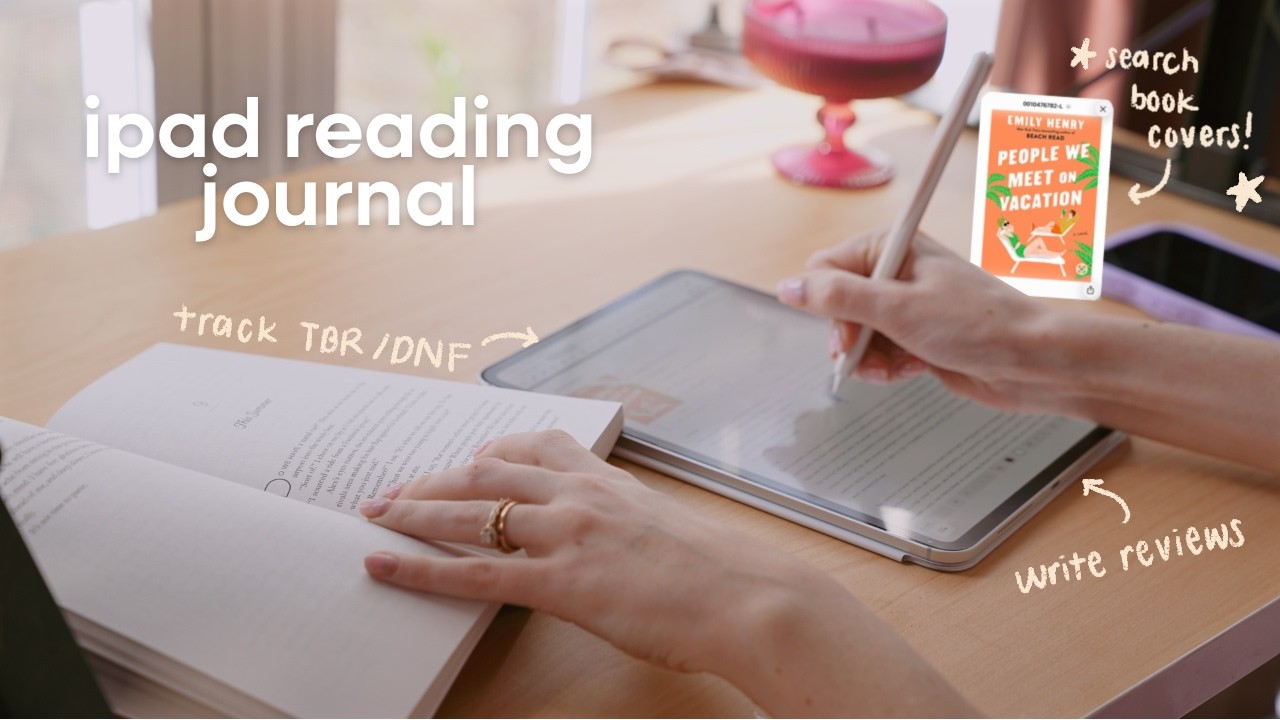
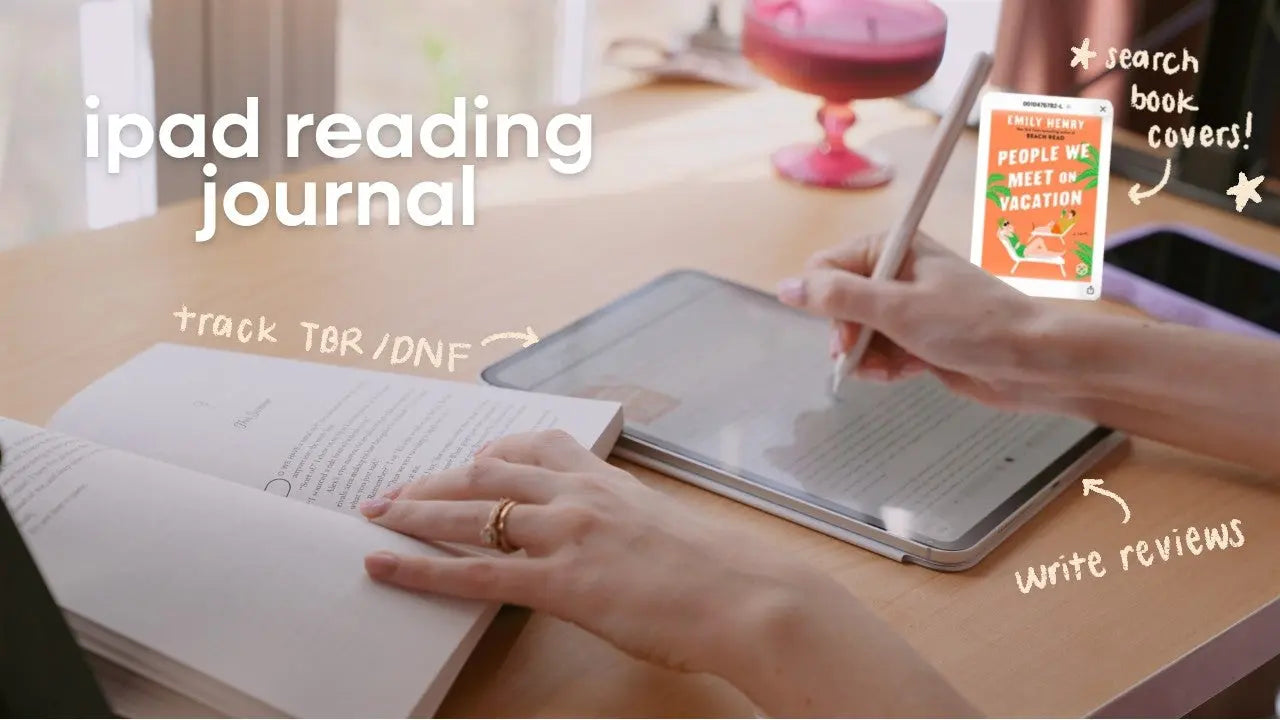
I use a digital reading journal to make reading feel intentional, organized, and a little more magical. The system I use is customizable, works in portrait or landscape, and pairs with a handy shortcut that automatically pulls book covers, page counts, and estimated read times so you can populate pages without hunting for info.
Quick overview
The journal includes:
- A library grid for up to 120 books (12 per page, 10 pages)
- A series tracker for up to 60 series (5 pages, 12 per page)
- Current reads, wish list, favorites, quotes, custom note dividers, and plenty of spare pages
- Trackers for book releases, library returns, yearly reading log (pixel-style), borrowing log, and owned books
- Challenge pages: reading goals, 52-books-in-52-weeks, A-to-Z, plus five blank challenge pages you can customize
- Sticker packs and pre-made elements collections for GoodNotes and Noteful
- An integrated shortcut (Book Assistant) that pulls metadata automatically
Downloading and customizing your journal
The download portal is interactive so you can pick cover color and orientation every time you go through it. You can re-run the access portal as many times as you want to download different colors or portrait versus landscape files. Cover color options include butter, rose, oat sky, lilac, and black.
Importing into your note-taking app
Once you download the PDF, import it into your preferred app (GoodNotes, Noteful, Notability, ZoomNotes, etc.). The process is straightforward:
- Open the downloaded file preview and share it to your app.
- Create a new notebook (or add to an existing one).
- Save and open the journal—navigation is fully hyperlinked.
Stickers and elements
Stickers come as:
- A zip of individual PNGs grouped into folders
- Pre-made elements/collections built specifically for GoodNotes and Noteful so you can import them as sticker collections instantly
Those pre-made collections let you drag-and-drop or stamp stickers onto review pages and the library grid without resizing every time.
Journal layout: what each tab does
Library
Grid-style library with 120 slots. Tap any slot to jump to the book review page. Each book review includes:
- Cover image
- Genre, format, page count
- Start and finish dates
- Summary, favorite quotes, and full review space
- A visible book number so you always know where it sits in your year
Series
Five pages, 12 series per page. Each series overview lets you note genre, format, number of books, overall rating, and individual book numbers and ratings.
Current
At-a-glance space for:
- Up to four current reads
- Books in your immediate queue (up next)
- Latest loves you want to reference frequently
- Extra notes area
Trackers
Useful trackers include:
- Book releases: title, author, release date, price, and checkbox for purchase or pre-order
- Library returns: titles borrowed via library or Libby with return dates and checkboxes
- Yearly reading log: pixel-style grid to color-code pages or minutes per day for a visual “reading wrapped” snapshot
- Borrowing log: track who you borrowed from and when to return
- Owned books: inventory with physical/digital toggle and notes
Challenges
Pre-built challenges plus blank pages you can repurpose:
- Reading goals (books, pages, minutes, and more specific goals like genre targets)
- 52-books-in-52-weeks tracker
- A-to-Z challenge template (authors or titles)
- Five additional blank challenge pages for whatever you dream up
Quotes, Wish list, Favorites, Notes
Dedicated spaces to keep favorite quotes, a wish list in gallery and list views, an organized favorites section (by year or all-time), and blank note dividers where you can paste or write freely.
The Book Assistant shortcut: setup and workflow
The shortcut integrates directly with the journal to automate the tedious parts of setup. Key setup steps:
- Download the Book Assistant shortcut and tap setup.
- Select your note-taking app (GoodNotes default; change to Noteful or other apps as needed).
- Choose your book tracker app if you use one (StoryGraph, Goodreads, etc.) or skip if not applicable.
- Avoid editing the shortcut actions—modifying them can break the flow.
What the shortcut does for you
With a quick run of the shortcut you can:
- Search an open library database for a title and author
- Automatically fetch and copy the book cover for easy pasting
- Pull page counts and publish dates
- Calculate an estimated read time based on page count
- Open your book tracker or view a book on Amazon directly
Typical flow when adding a book
- Run the shortcut and enter the book title and author.
- Pick the correct database result if multiple appear.
- Choose the actions you want—save cover, get page count, calculate read time, etc.
- Paste cover, page count, and read time into the library or review page.
- Use imported sticker elements to add ratings, page flags, or other visual cues.
This removes the need to split-screen Google things, save images, and manually crop or manage files. The shortcut copies data to your clipboard so you can paste and move on.
Practical tips and time-savers
- Use the pre-made elements for quick rating badges and page flags sized perfectly for the template.
- Duplicate pages when you run out of space—every template is easy to copy so your journal can grow with your reading.
- Color-code the yearly reading log by pages or minutes to get a visual snapshot of your reading habits across months.
- Keep the shortcut permissions enabled for smooth operation; it may ask once for permission to access the online library.
- Use the Current tab as a dashboard for what matters most this week: reads in progress, next up, and favorites to reference.
- Treat the notes dividers as digital sticky sections—paste templates, printables, or lists behind them.
Why this system works
The combination of a well-organized digital layout plus a metadata-pulling shortcut removes the friction from tracking books. Instead of spending time collecting covers and data, you spend time reading and reflecting.
Digital flexibility means you can:
- Add unlimited extra pages
- Import stickers and rearrange elements
- Keep a searchable, shareable record of your reading life
Final thoughts
If you enjoy a more analog-style journaling experience but prefer the convenience of digital tools, a reading journal with automated metadata is one of the best ways to combine both. It keeps the ritual of reflection intact and dramatically reduces busywork.
Use the built-in trackers and challenge pages to make reading goals feel achievable, and let the shortcut do the heavy lifting when it comes to metadata.

Share:
The 2026 Notion Planner That Actually Sticks
How to Create Your Digital Planner: The Ultimate 2026 Guide