


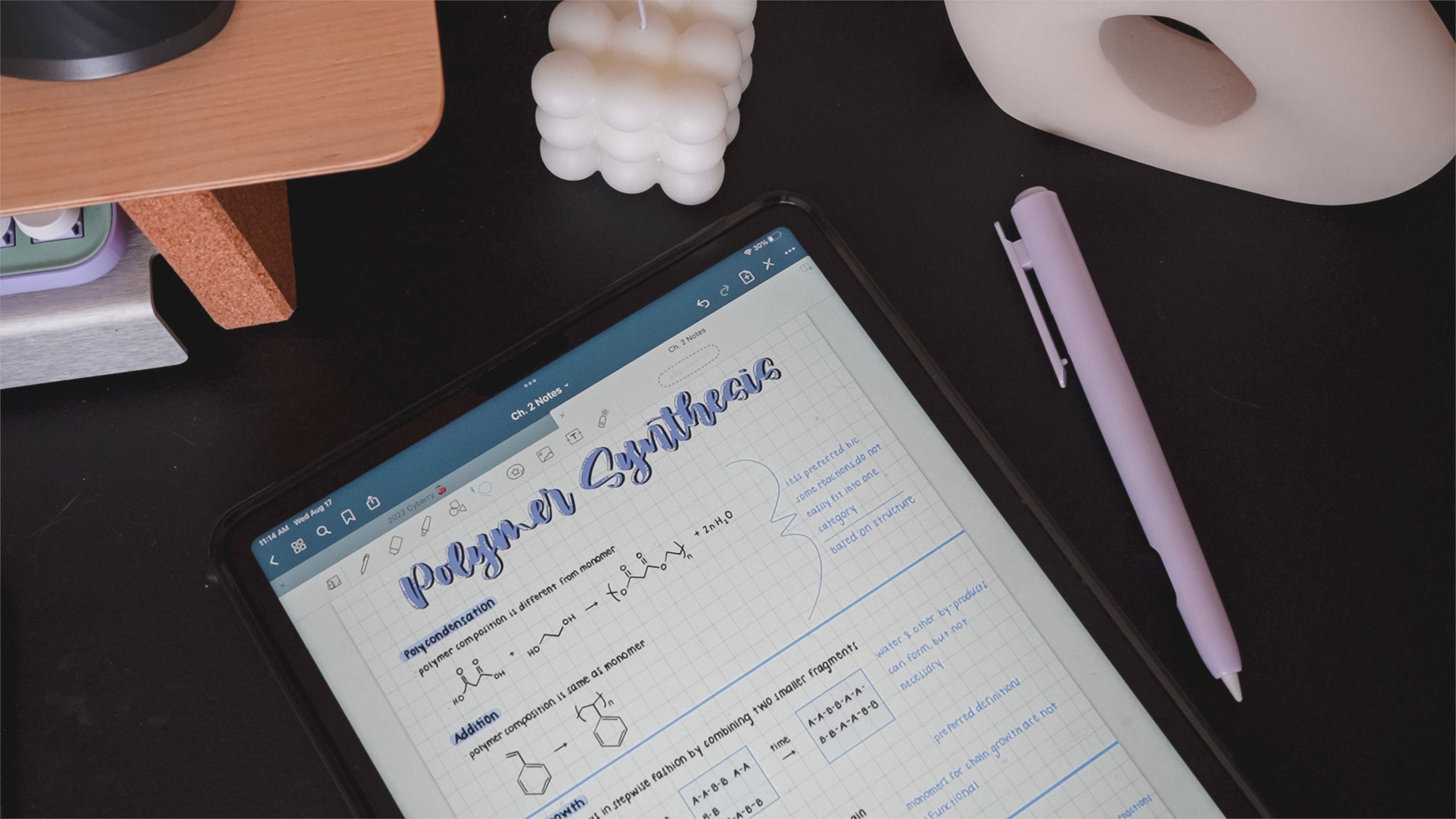
If you're a student trying to decide how to take notes on your iPad this year, the choice almost always comes down to two apps: Goodnotes and Notability. Both are excellent, but the “best” one genuinely depends on how you study. I used Goodnotes all through my chemistry degree, so this breakdown is written specifically for school life—lectures, readings, exam season, group projects, and a student budget.
The 30-second answer for students
Pick Notability if you sit through lectures and want to record audio while you write so you can replay anything you missed. Pick Goodnotes if you annotate a lot of PDFs and lecture slides, take a heavy course load that needs serious folder organization, or use a non-Apple laptop alongside your iPad. Want the general (non-student) version too? See my full Goodnotes vs Notability comparison.
In lectures: audio recording changes everything
This is the single biggest deal for students. Notability records audio and syncs it to your handwriting—tap any word later and it jumps to the exact second the professor said it. Missed a step in a proof or a definition? Replay just that moment. Goodnotes doesn't do time-synced audio in the same way. If you take notes in fast lectures, this feature alone can decide it.
For readings & lecture slides: PDF annotation
Most classes bury you in PDFs—slide decks, journal articles, problem sets. Goodnotes is outstanding for importing those, marking them up, and keeping them tidy inside class notebooks. Notability annotates PDFs well too, but if your major runs on readings and slides, Goodnotes' notebook system tends to win.
Come exam season: search & organization
The real test is finals, when you need one definition buried in 300 pages of notes. Both apps can search your handwriting, but Goodnotes' library-wide search and folder-per-class structure shine when you're reviewing a whole semester. Set up a folder for each class in week one and studying later is dramatically easier—I walk through this in my iPad note-taking setup guide.
Group projects & sharing
Need to share notes with classmates or hand in annotated work? Both export clean PDFs. Goodnotes' cross-platform reach (iPad, iPhone, Mac, Windows, Android) makes it easier when your group is on mixed devices; Notability is Apple-only, which is fine if everyone's on iPhones and Macs.
On a student budget: pricing
Money matters when you're in school, so here's the honest picture (always confirm current App Store pricing):
- Goodnotes has a free version, a one-time purchase option (historically around $30, no recurring fee), and subscription tiers with AI features. The one-time option is friendly for a multi-year degree.
- Notability has a free version plus Notability Plus (roughly $15–$20/year) for unlimited edits and the full toolset—and that yearly fee buys the lecture-audio feature that many students consider non-negotiable.
Both free versions are good enough to trial for a couple of weeks—do that before you pay. If you want a fully-free route, I rounded up the best free iPad note-taking apps for students.
Platforms: what else do you use?
If you pair your iPad with a Windows or Android laptop, Goodnotes syncs across all of them—a genuine advantage on campus. If your whole world is Apple, Notability's Apple-only focus won't hold you back at all.
So which should a student get?
- Get Notability if lectures are the core of your day and audio-synced notes would save you.
- Get Goodnotes if you're PDF/slide-heavy, carry a big course load, want library-wide search, or use a non-Apple laptop.
- Still torn? Install both free versions this week and take real class notes in each. Watch me test the major apps on my YouTube channel, or read Best iPad Note-Taking Apps (Fully Tested!).
Make your notes actually work for school
Whichever app you choose, your system is what keeps you organized. A few student-favorite add-ons that work in both apps:
- studentOS Stickers and Pastel Student Widgets to build a clean dashboard for each class.
- Student Flags and Sticky Note Stickers to mark due dates, key terms, and “study this.”
- The Kirstin Font for typed notes that still feel personal.
New to all of this? Start with How to Start Digital Planning for Free, then grab a template and make it your own. Want prettier, more scannable notes too? Read How to Take Aesthetic & Organized Digital Notes.
Prices and features mentioned were accurate at the time of writing—always double-check the App Store for the latest.
Share:
The Best Note-Taking Apps for iPad in 2026
The Best Note-Taking Apps for iPad in 2026