


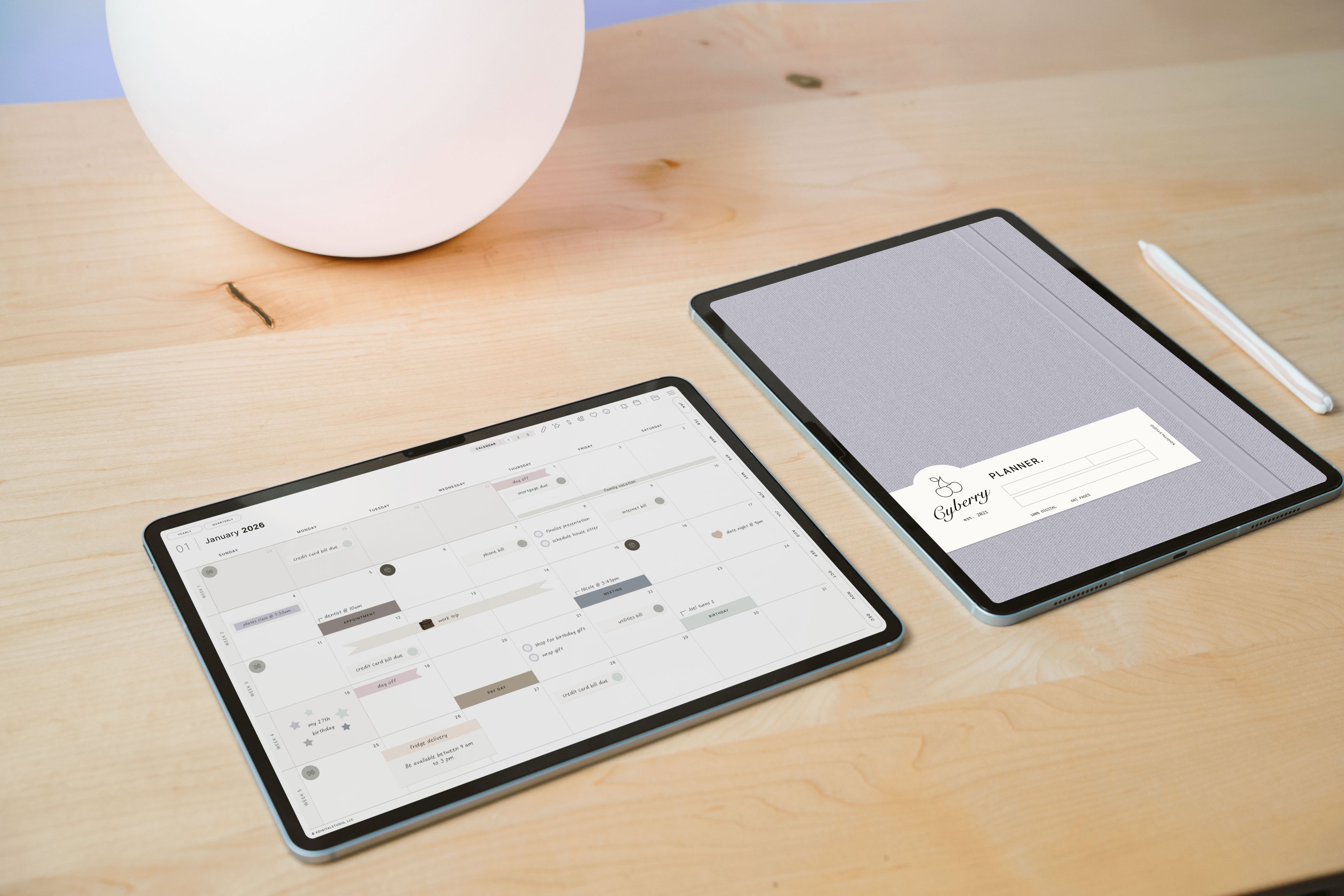
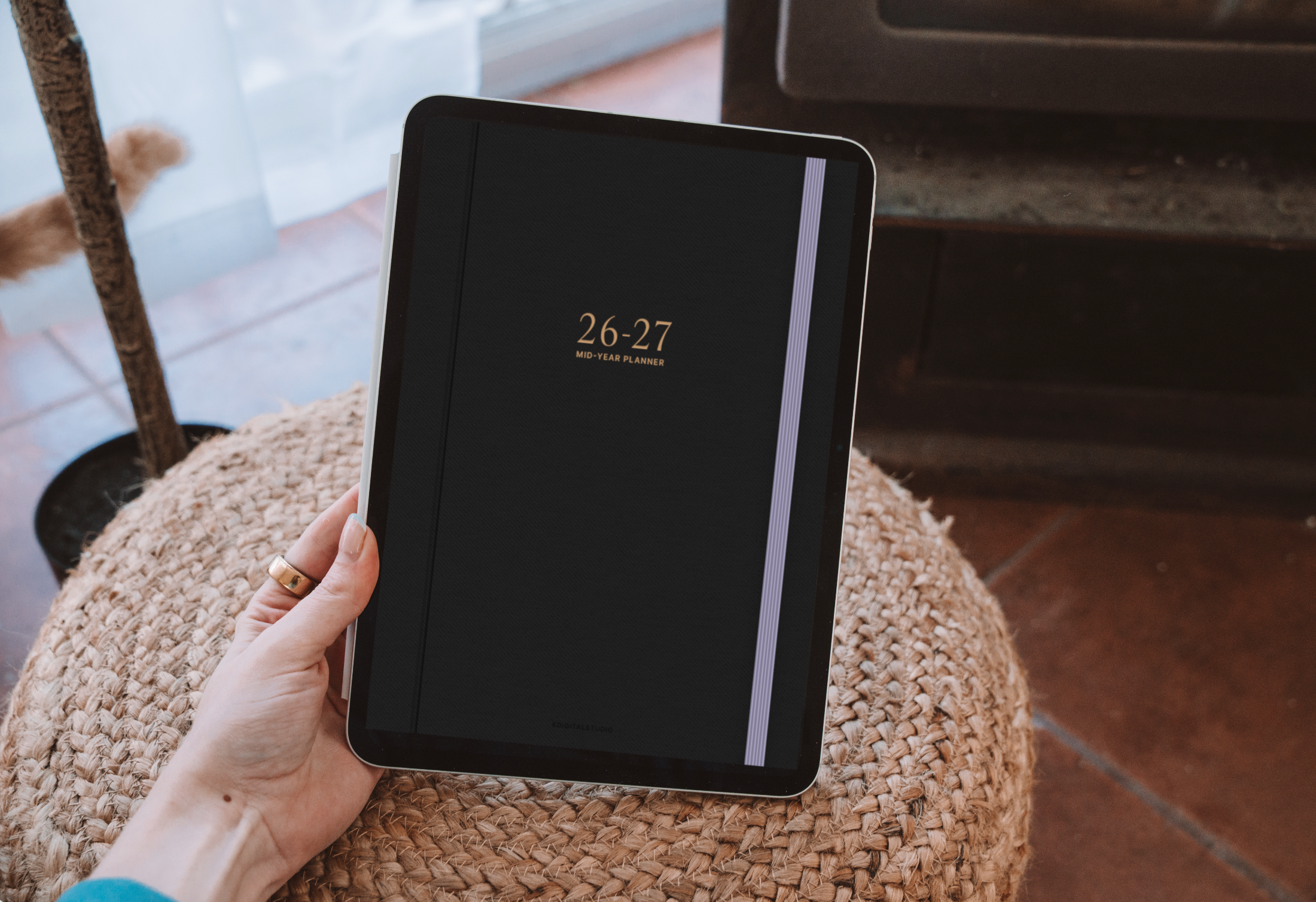
One of the best things about a digital planner is that it never has to look the same twice. Want a soft pastel cover in spring and a moody dark one in winter? A cover with your name on it? A different look for your work planner versus your personal one? Digital planner covers make it happen. This beginner-friendly tutorial shows you exactly how to add and change covers in GoodNotes (using the built-in Notebook Templates feature) and in Noteful on your iPad.
What is a digital planner cover?
A digital planner cover is the first page of your planner — the "front" you see in your library thumbnail and when you open the notebook. KDigitalStudio covers come as template files you add to GoodNotes' cover library. Switching covers doesn't change any of your planner content; it only changes the look.
What you'll need
- Your planner already imported into GoodNotes or Noteful. (New here? Start with our guide on how to download and import your planner.)
- Your cover files saved in the Files app or your Photos library. Covers you purchase from KDigitalStudio download the same way your planner does.
Part 1: Add your covers to GoodNotes (Notebook Templates)
GoodNotes stores covers in a built-in library called Notebook Templates. Add your covers here once, and you can apply them to any notebook.
- On the main screen of GoodNotes (make sure you do not have a file open), tap the gear icon.
- Tap Notebook Templates.

- Tap Default Cover, then choose a page size and a layout (portrait or landscape) that match your planner.
- You can scroll all the way to the right to add covers to the existing categories — or create your own category (more on that below).
- Tap Import and select either Files or Photos, depending on where your cover templates are stored. Add your cover.

Once your covers are imported, you can create a new notebook inside GoodNotes and select any of the covers you added.
Part 2 (optional): Create your own cover category
Keeping your covers organized makes them easy to find. You can create custom template categories for your covers or paper styles:
- Tap the gear icon on the main screen of GoodNotes, then tap Notebook Templates.
- Select Default Cover (or Default Paper, depending on what you're importing).
- Tap the plus icon and name your category.

- Tap Import and select Files or Photos depending on where your templates are stored. Your cover is added to your new category.

Part 3: Add a cover to a planner you're already using
Already have your planner open and want to swap the cover? Here's how to add one of your imported covers to your current notes:
- Open the notes or file you want to add a cover to.
- Tap the Add Page button, and make sure Before is selected (so the cover goes to the very front).

- Tap More from Templates… and select your desired cover.
- Tap Apply.

- Finish by using the pen or text tool to add a title to your cover, if you'd like a personalized touch.
How to change your cover in Noteful
Noteful handles covers as images, which is quick and flexible:
- Open your planner in Noteful and navigate to the cover page.
- Tap the Image tool, then Import, and select your cover from Files or Photos.
- Drag the corner handles to resize the image so it fills the page edge to edge, then tap away to set it.
- To reuse covers, keep a dedicated Noteful notebook of your favorite cover images so they're always a couple of taps away.

Choose to add a cover from the Menu. Press the three dots to show more options.

Choose from preset cover options in Noteful, or use the + button to import your covers from KDigitalStudio.
Troubleshooting
My cover image looks blurry.
Use the highest-resolution version of the cover file, and import the original file rather than a screenshot. KDigitalStudio covers are made at high resolution.
I don't see my imported cover when I tap "More from Templates…"
Double-check that you imported it under Default Cover (not Default Paper), and that the size and orientation match your planner. Covers only appear under the matching size/layout.
I changed the cover but the old thumbnail still shows in my library.
Close and reopen the planner, or tap into it and back out. The thumbnail refreshes once the app re-renders the first page.
Make it yours
Covers are the fastest way to make a planner feel truly personal. Mix and match them by season, mood, or planner type, and rotate them whenever you want a fresh start.

Share:
Goodnotes vs Noteshelf: A Handwriting App Comparison for 2026
How to Add Digital Stickers in GoodNotes & Noteful (Beginner's Guide)