


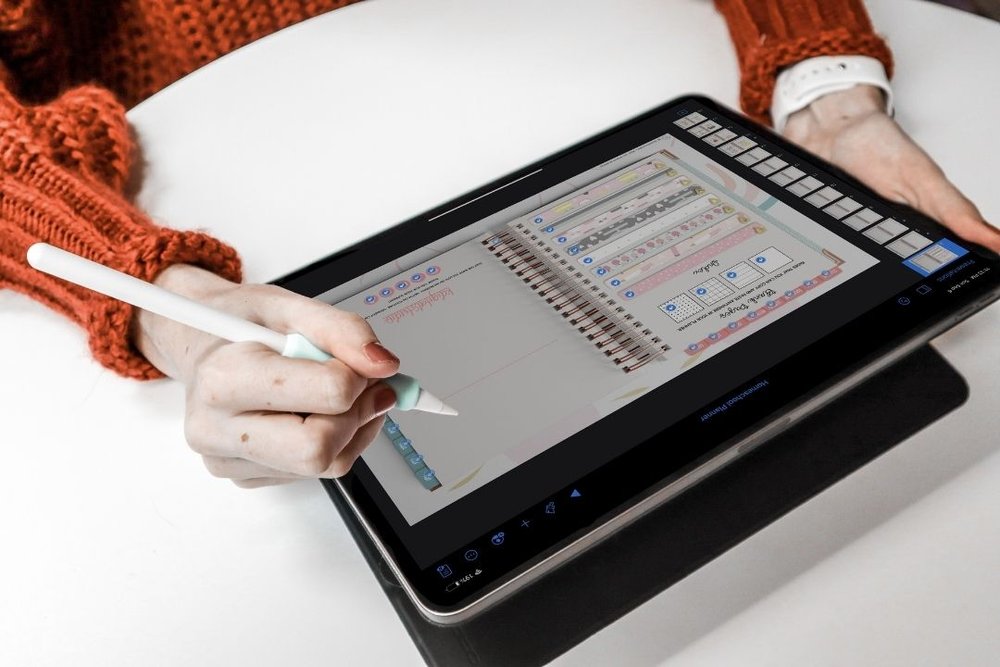
When people ask me what software I recommend for designing digital planners, Adobe InDesign is usually the first thing they've heard about. But InDesign costs money every month, has a steep learning curve, and is more than most people need.
Keynote — Apple's free presentation app, available on every Mac and iPad — is one of the best-kept secrets in digital planner design. Here's how to use it.
Why Keynote Works for Digital Planners
Keynote exports to PDF natively, which is the format digital planners need to be in. It supports precise shapes, text boxes, custom fonts, and — crucially — hyperlinks. Those three things are all you need to build a functional, beautiful digital planner.
It's free on Mac and iPad. There's nothing to subscribe to.
Step 1: Set Up Your Canvas
Open a new Keynote presentation. Go to Document settings and change the slide size to match your target device. For iPad planners, a common size is 8.5" x 11" (letter) or 4:3 ratio. You can also use a custom size like 2388 x 1668px to match iPad Pro screens exactly.
Step 2: Design Your Layouts
Build each page of your planner as a separate slide. Create your cover, yearly overview, monthly spreads, weekly spreads, and daily pages. Use Keynote's shape and text tools to build your layouts. Keep a consistent color palette and use master slide elements for things that repeat (like headers and navigation tabs).
Tips that save time:
- Use guides (View → Show Rulers, then drag guides out) to keep alignment consistent
- Group elements you want to move together
- Use "Format → Copy Style / Paste Style" to duplicate formatting across elements
Step 3: Add Hyperlinks
This is where digital planners come to life. Select any shape or text box, go to Format → Add Link, and choose "Slide" to link it to another slide in your deck. This is how tabs and navigation buttons work.
Build your navigation first, then test every link before exporting. It's much easier to fix links in Keynote than to re-export and re-test the PDF.

Step 4: Export as PDF
When your planner is ready, go to File → Export To → PDF. Make sure "Include slide numbers" is unchecked. The export will preserve your hyperlinks.
One important note: Keynote exports vector-quality PDFs for shapes and text, but rasterizes any bitmap images you've included. Keep this in mind if you're using background images — use high-resolution assets.
Step 5: Test in GoodNotes or Notability
Open the exported PDF in your target app and click through every navigation element. Make sure all tabs go where you expect, and that the page layouts look right on the device you're designing for.
Ready to Build Faster?
If you want a head start, the Keynote Kits at KDigitalStudio give you pre-built, fully hyperlinked Keynote templates you can customize with your own colors, fonts, and content — then export and sell as your own. The Digital Planner Design Lab course also walks through this entire process in detail, with video.
[collection=keynote-kits]

Share:
Digital Planner vs Paper Planner: Which One Is Actually Better?
Cyberry Digital Planner Review: Is It Worth It?