


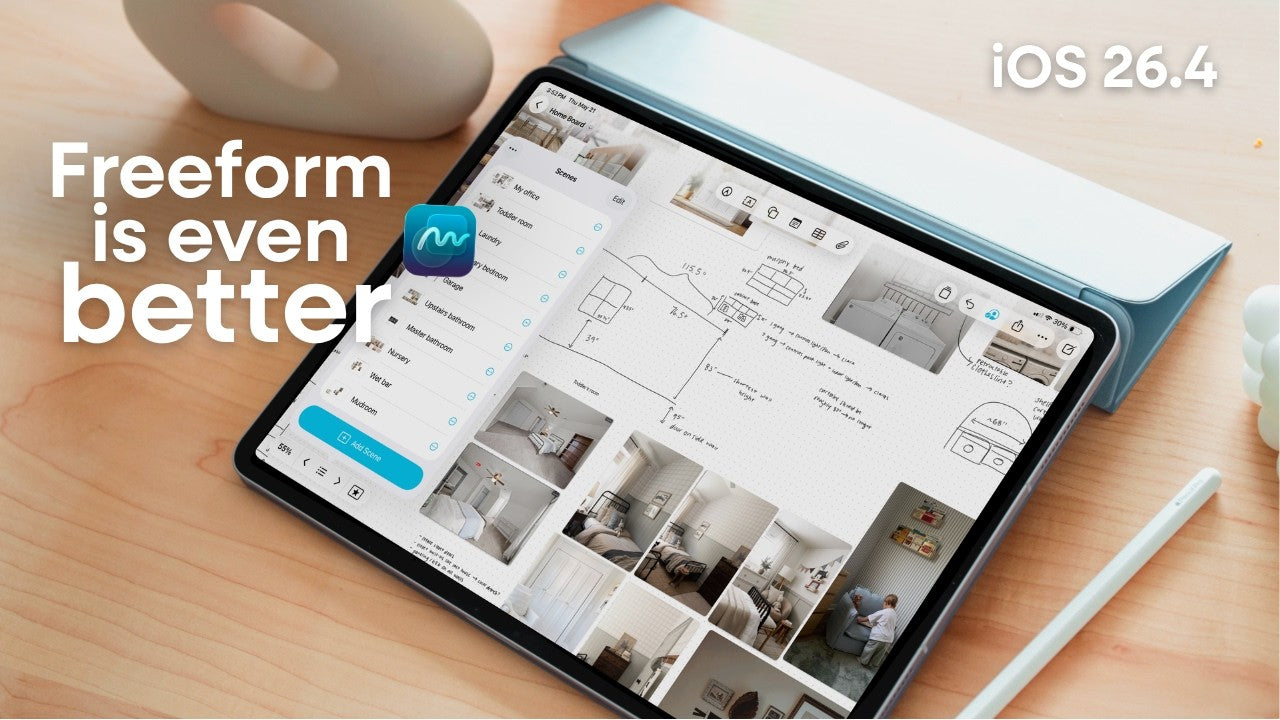
Apple Freeform Just Got Better
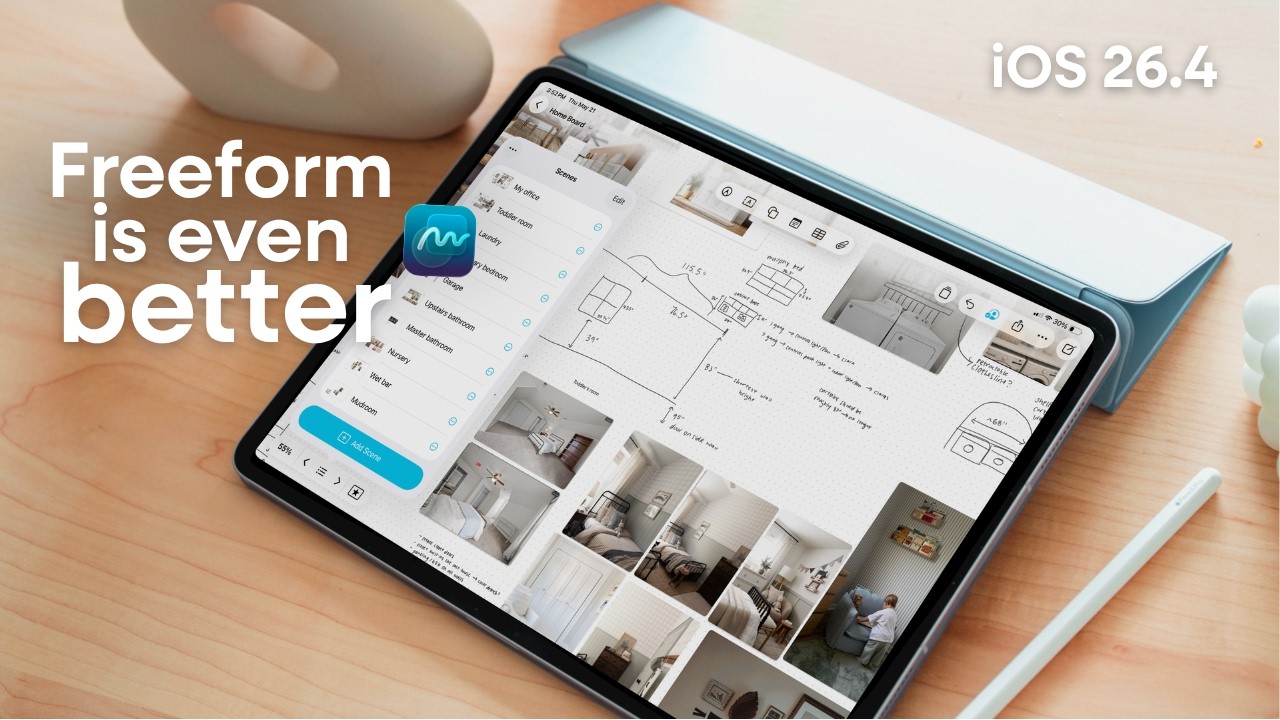
Out of every app on my iPad, Freeform is the one I use the most. Not the flashiest app. Not the most talked-about app. Just the one I keep coming back to every single day.
I have been a Freeform girlie since day one and I am fully not embarrassed to say I am 50-plus boards deep. Meal planning, home projects, brainstorming, course notes, random scratch paper, visual planning, quick phone call notes, all of it lives there.
And with the iOS 26.4 update, Apple gave me even more reasons to stay in this app.
Why Freeform is still one of the most underrated iPad apps
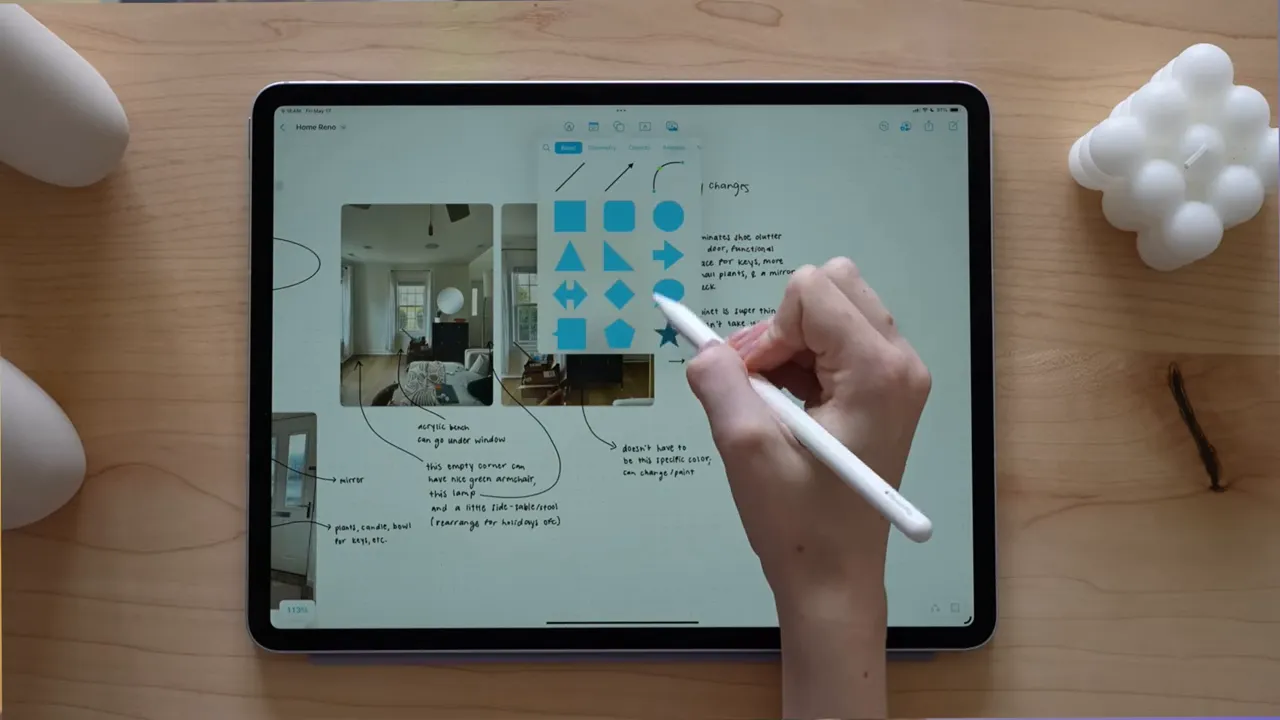
At its core, Freeform is Apple’s infinite canvas app. Think of it like a giant digital whiteboard where you can drop in just about anything:
- Text
- Photos
- Sketches
- Links
- Sticky notes
- Shapes
- PDFs
- Files
There is no rigid page structure forcing you into a specific layout. No fixed document size. No feeling like you need to organize your thoughts before you are allowed to start. It is just space to think.
If you want more structure, you can absolutely create it. But the point is that Freeform doesn’t demand it from you upfront.
It also works across iPhone, iPad, and Mac, and it syncs the way you would expect an Apple app to sync. You can share boards and collaborate in real time too, which makes it useful for work, school, or even something as simple as planning a home project with your partner.
And honestly, one of the best parts is this: it’s free. No subscription just to use the app. There is a very good chance it is already sitting on your iPad right now, quietly unopened.
What makes Freeform different from Notes
A lot of people probably assume this is just another place to jot things down, but that is really underselling it.
What makes Freeform so useful is the freedom of the canvas itself. In Notes, your ideas have to fit into a document-shaped space. In Freeform, you can think visually. You can spread out. You can group ideas, move them around, connect them with arrows, and build on them without ever feeling boxed in.
That difference sounds small until you actually start using it. Then it becomes huge.
My favorite way to use Freeform: brainstorming
If I have a new video idea, a product concept, or I am trying to map out a course, Freeform is where I start.
I open a new board and just start dumping everything out. Text boxes. Arrows. Sticky notes. Messy thought clusters. Whatever helps me see the idea instead of trying to force it into a tidy outline before it is ready.
That infinite canvas makes a real difference for visual thinkers. You are not trying to fit your thinking into a formal document. You are basically thinking out loud on the screen.
For me, that feels so much less restrictive than working inside Apple Notes or another app with a fixed format. I can let ideas branch off naturally, and if one section grows into its own bigger concept, there is always room for it.
Freeform is also my digital scrap paper
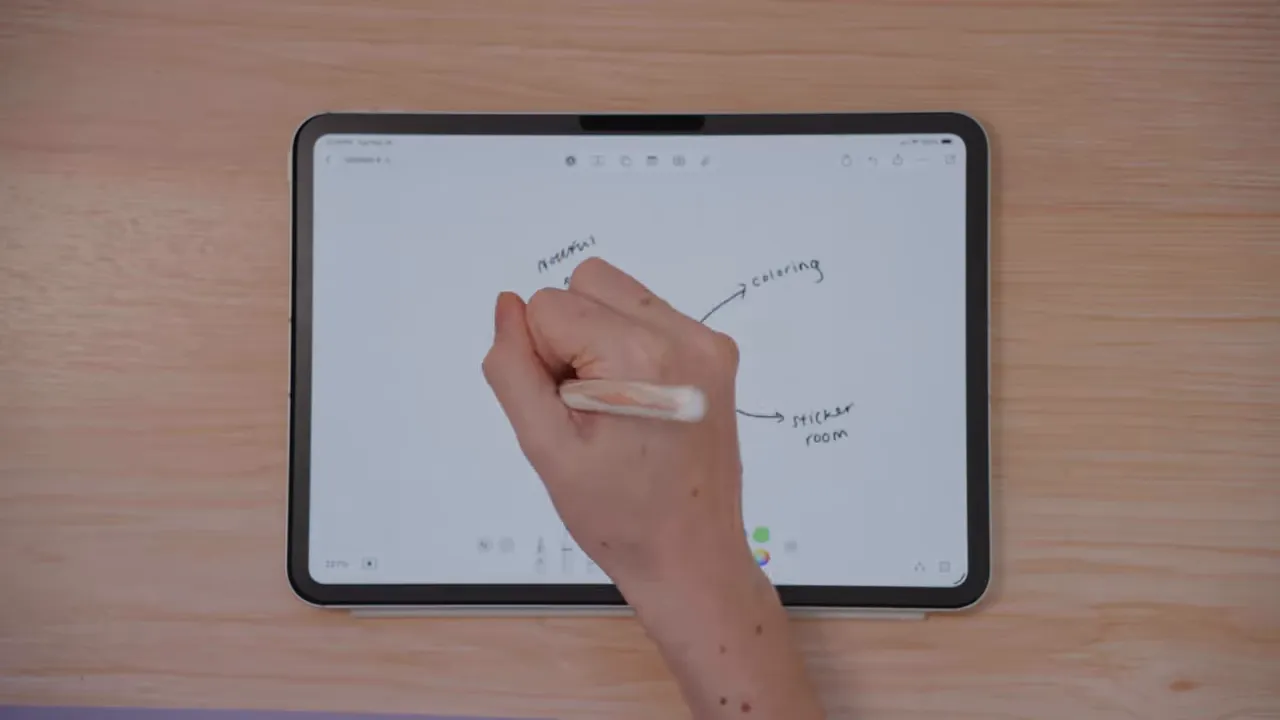
This use case sounds incredibly simple, but it is probably responsible for half my boards.
I use Freeform for all the little things that do not necessarily need a permanent home but still need to exist somewhere for a bit. Things like:
- Quick calculations
- Room measurements
- Temporary lists
- Notes from a phone call
- Random ideas I need to get out of my head
Yes, I used to do this in Notes. But Freeform gives me more flexibility. If the idea stays small, great. If it turns into something bigger, I can expand it without having to move it somewhere else.
That ability to start messy and then build from there is one of the app’s biggest strengths.
Dropping files into Freeform makes planning way more visual
One of the most useful features in Freeform is that you can drop in virtually any file. That makes it so much easier to connect your ideas to the actual things you are referencing.
And the file previews are good. They create rich visual thumbnails on the board, which makes everything feel more intuitive and a lot easier to scan.
Instead of a boring list of links or attachments, you get a canvas that actually looks like a workspace.
How I use this for meal planning
This is one of my favorite practical examples.
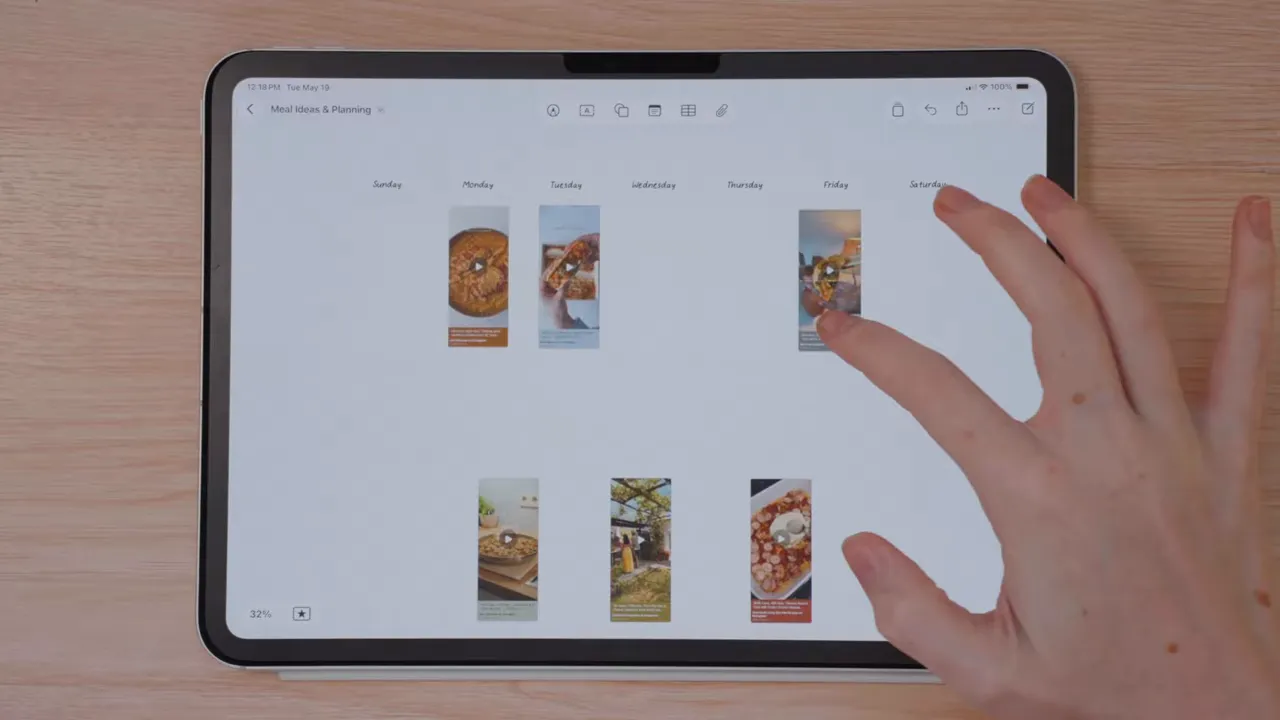
When I am planning the week, I drop in photos of recipes I want to try. I organize them by day. I add notes about ingredients if I need to. And suddenly meal planning feels way more visual and way less like administrative homework.
What makes this especially good is that I can also paste in recipe reels or TikToks I have saved. That means I can quickly rewatch the recipe instead of trying to remember the steps, decode some bizarre internet recipe name, or dig through a pile of saved links later.
I can also build out a whole recipe library on the same canvas, including:
- Saved reels
- TikToks
- Recipe blog posts
- Photos for inspiration
- Weekly meal assignments
Then I just drag things around depending on what I want to make that week. If your brain works better with visual organization than plain lists, this is such a good system.
It’s excellent for home projects and inspiration boards
I use the exact same approach for home planning.
I am constantly saving Pinterest inspiration, paint color ideas, furniture dimensions, project timelines, DIY reels, and little notes about what I want to change in different rooms. Freeform gives me one place to hold all of that without it turning into chaos.
And because everything is visual, it becomes much easier to actually make decisions. You can compare ideas side by side. You can cluster inspiration by room or project. You can map out what you want to do first and what can wait.
That kind of board is hard to recreate in a standard notes app without it becoming a mess of pasted links and screenshots.
The scenes feature is low-key one of the best tools for big boards
When a Freeform board gets large, navigation matters. This is where Scenes becomes really useful.
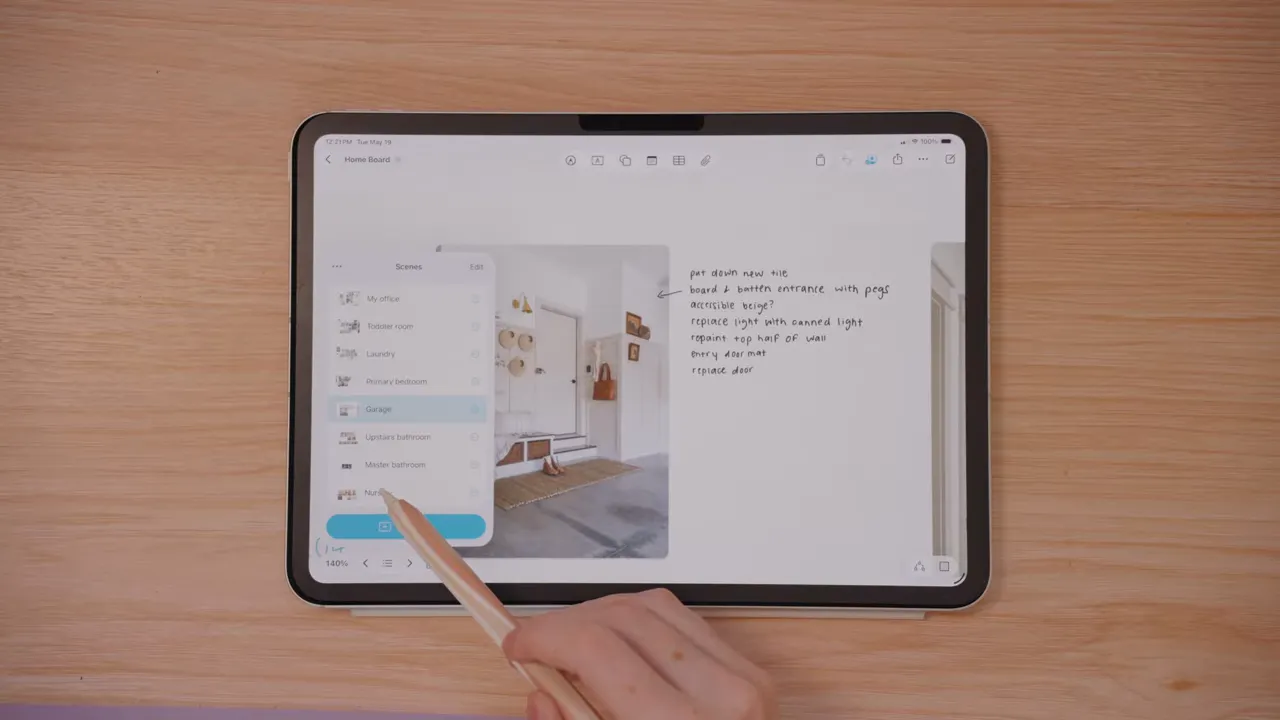
On my home board, I use scenes to jump between different rooms. So instead of zooming out, panning around, and trying to find the right section of the canvas, I can tap a saved scene and go straight there.
If I want the office section, I click the office scene and it takes me directly to that area of the board.
Basically, a scene saves a specific view of part of your canvas so you can get back to it quickly later. If you are building large, multi-section boards, this makes a big difference.
What changed in the iOS 26.4 update
The big news is that Freeform is now part of Apple Creator Studio.
Apple Creator Studio launched earlier this year as a subscription bundle for $12.99 a month. It includes access to pro apps like Final Cut Pro, Logic Pro, and Pixelmator Pro on iPad, plus premium features in apps like Pages, Keynote, and Numbers.
Freeform was noticeably missing at launch. Apple said support was coming later, and with iOS 26.4, it finally showed up.
If you want the full breakdown of that bundle, there is a separate Apple Creator Studio overview that covers the full suite in more detail.
The new Freeform features inside Apple Creator Studio
1. Content Hub
This is the addition I was most excited about.
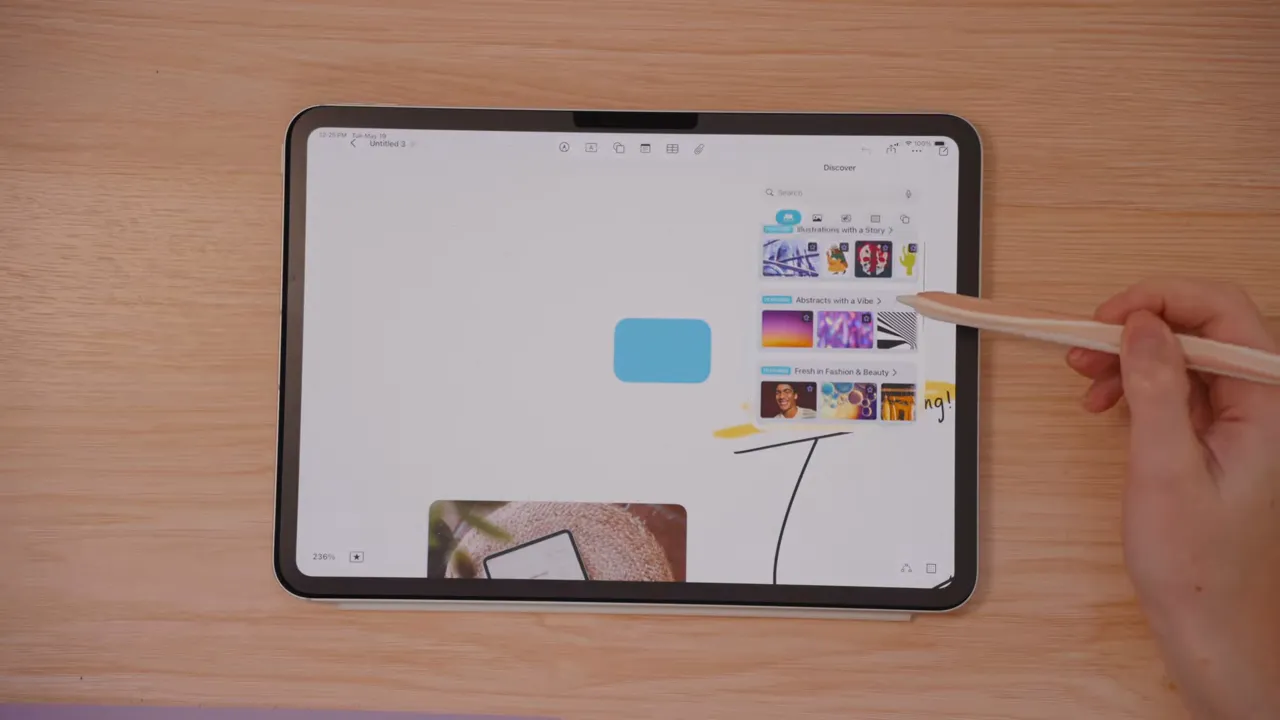
The new Content Hub gives you a built-in library of premium assets you can drop directly onto your Freeform canvas, including:
- Shapes
- Graphics
- Photos
- Illustrations
- Backgrounds
Premium assets are marked with a little purple star, so it is easy to tell what is included through Creator Studio.
If you use Freeform for mood boards, visual planning, presentations, concept boards, or any kind of creative layout work, this makes the app much more powerful without adding complexity.
2. AI image generation inside Freeform
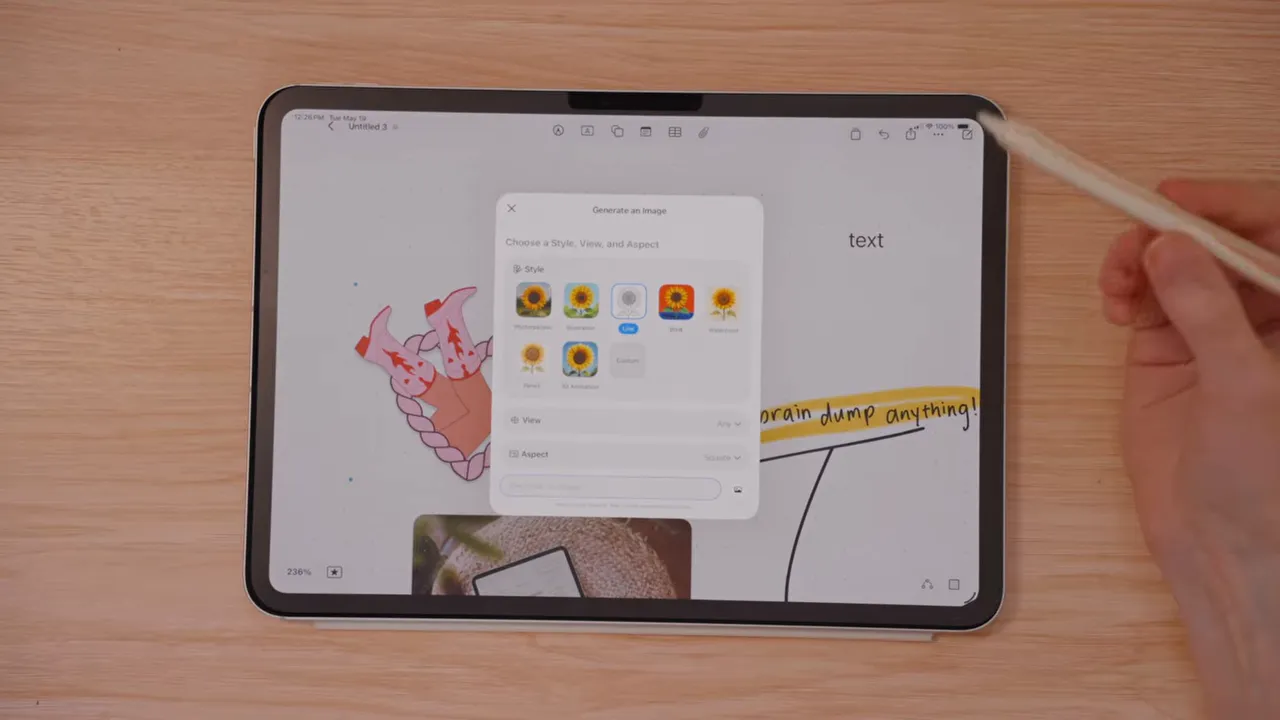
Apple also added image generation directly inside Freeform using OpenAI’s image models.
That means you can create images right on the canvas instead of leaving your board, opening another app, generating something there, saving it, and bringing it back in.
For visual planning, brainstorming, and mood boarding, that is a genuinely helpful improvement. If you are trying to mock up a concept or fill in a missing visual reference, being able to prompt an image into existence on the spot is a big convenience.
There is also some indication that the controls here are a bit more capable than what you get in Apple’s Image Playground app, which makes this even more interesting for people doing creative work inside the Apple ecosystem.
Important note: this feature requires an Apple Intelligence-compatible device and iOS 26. In practice, that means an iPhone 15 Pro or later, or an iPad with an A17 Pro or M1 chip or later. If you are on older hardware, you can still use Freeform and the rest of the update, just not this part.
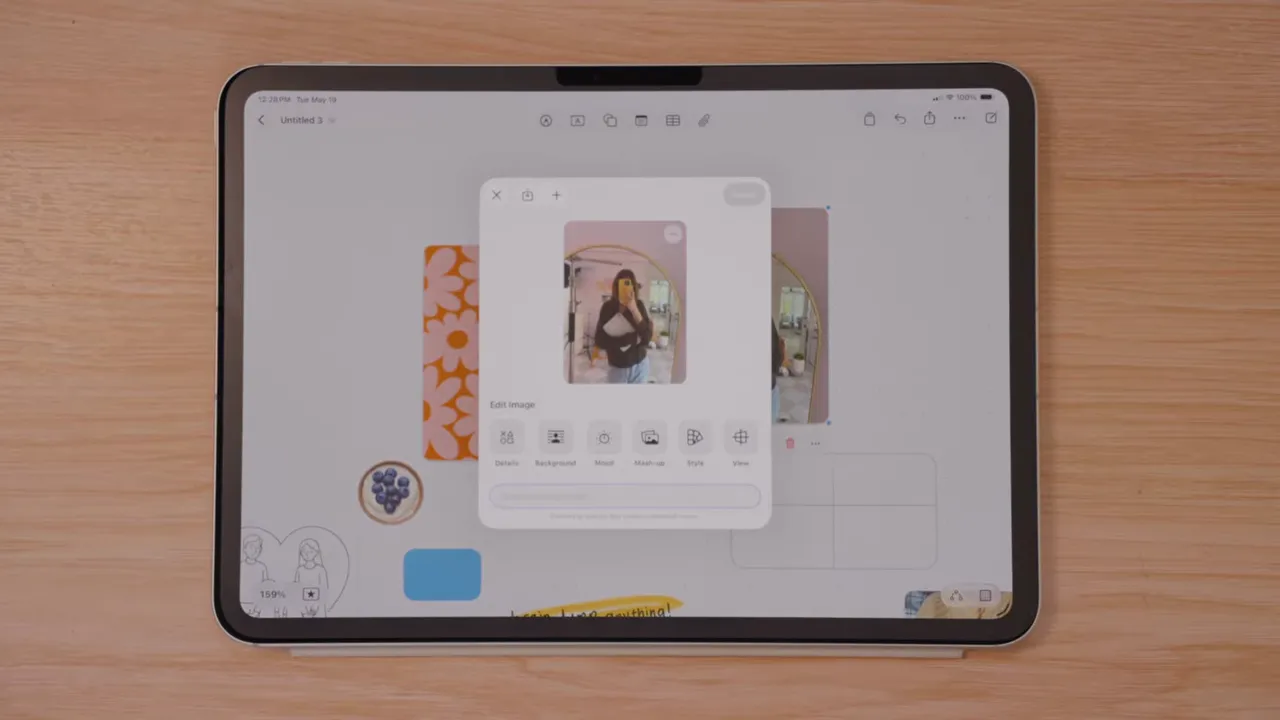
3. Advanced image editing tools
The third category is where Freeform starts becoming even more useful for everyday visual work.
Apple added advanced editing tools like:
- Super resolution for upscaling lower-quality images
- Background removal
- Image-based content generation
So if you drop in a photo that is a little fuzzy, you can sharpen it up right there on the canvas. If you want to isolate an object from its background, you can do that too.
This is the kind of thing that previously pushed you into a separate app. If you have used Pixelmator Pro, some of these capabilities will feel very familiar. Having them built into Freeform is a really nice quality-of-life upgrade.
Is Apple Creator Studio worth it if you mainly use Freeform?
Here is the honest answer: it depends on why you want it.
If you are already in the Apple ecosystem and you use pro apps like Final Cut Pro, Logic Pro, Pixelmator Pro, or Motion, Creator Studio is pretty easy to justify. The new Freeform features just make the bundle even more appealing.
If Freeform is the main thing pulling you in, the premium additions are definitely useful, especially:
- Content Hub
- AI image generation
- Advanced editing tools
But Apple Creator Studio was designed as a broader professional bundle, not as a Freeform add-on. So it makes more sense to look at the whole package and decide whether it fits your workflow.
There is also a free trial available for up to one month, or up to three months if you recently got a new Mac or iPad, which makes it easy to test before committing.
And if you do not want the subscription at all, Freeform is still fantastic on its own. The core app remains free, useful, and honestly one of Apple’s best apps.
Why I keep coming back to Freeform every day
Even before this update, Freeform was already one of my favorite Apple apps. I use it for both personal life and professional work, and I reference it daily.
It is also an underrated collaboration tool. Because it is already available on Apple devices and free to use, it is easy to share a board with classmates, coworkers, or anyone else in your orbit who uses an iPad or Mac.
Honestly, I am still a little distraught that Freeform came out after I graduated. This would have been ridiculously useful for study groups.
It is one of those apps people either instantly connect with or completely ignore. And I really do think a lot more people would use it if they realized how many practical ways it can fit into everyday life.
Who Freeform is best for
Freeform is especially good if you:
- Think visually
- Like brainstorming without rigid structure
- Need a flexible place for personal planning
- Save a lot of inspiration for recipes, rooms, projects, or creative work
- Want to combine notes, links, images, and files in one place
- Collaborate with other people who use Apple devices
You do not need to become a power user with 50 boards to get value out of it. Even if you only use it here and there, there is probably a place for it in your workflow.
The bottom line
Freeform was already one of the best free apps on the iPad, and iOS 26.4 makes it better.
The app still shines most in its core form: an open, flexible, visual space for thinking, planning, collecting, and organizing. The new Creator Studio features add even more creative range, especially for people who build mood boards, work visually, or want lightweight image tools without bouncing between apps.
And that is really why it works so well. Freeform can be a brainstorm board, a meal planner, a home project hub, a scratchpad, a shared workspace, or all of those things at once.
It is fun, genuinely useful, and one of the few Apple apps I would recommend to almost anyone.
If you want a step-by-step walkthrough of where everything is and how to use it, there is also a full Freeform tutorial and beginner’s guide worth checking out.
Share:
How to Make a Digital Planner: Step-by-Step Guide for 2026
Don’t Buy the Wrong Apple Pencil in 2026: Every Model Compared + the Best Alternatives