


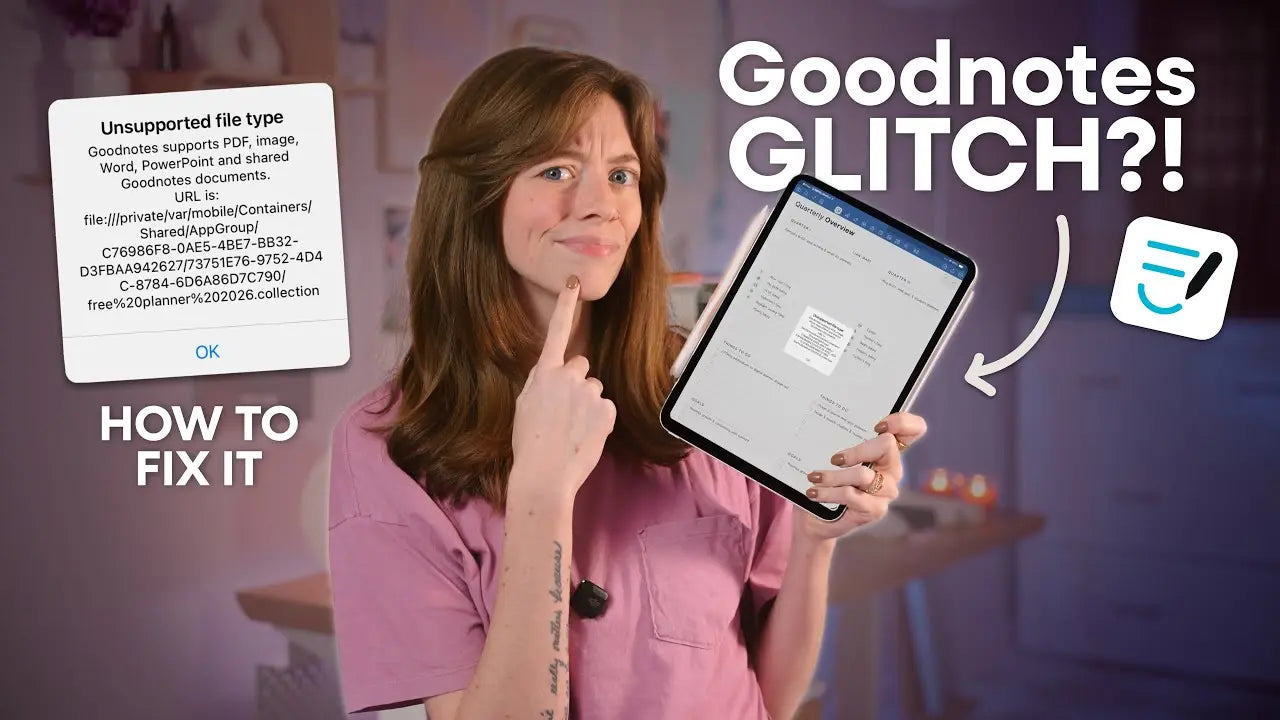
GoodNotes GLITCH? | How to fix the unsupported file type error
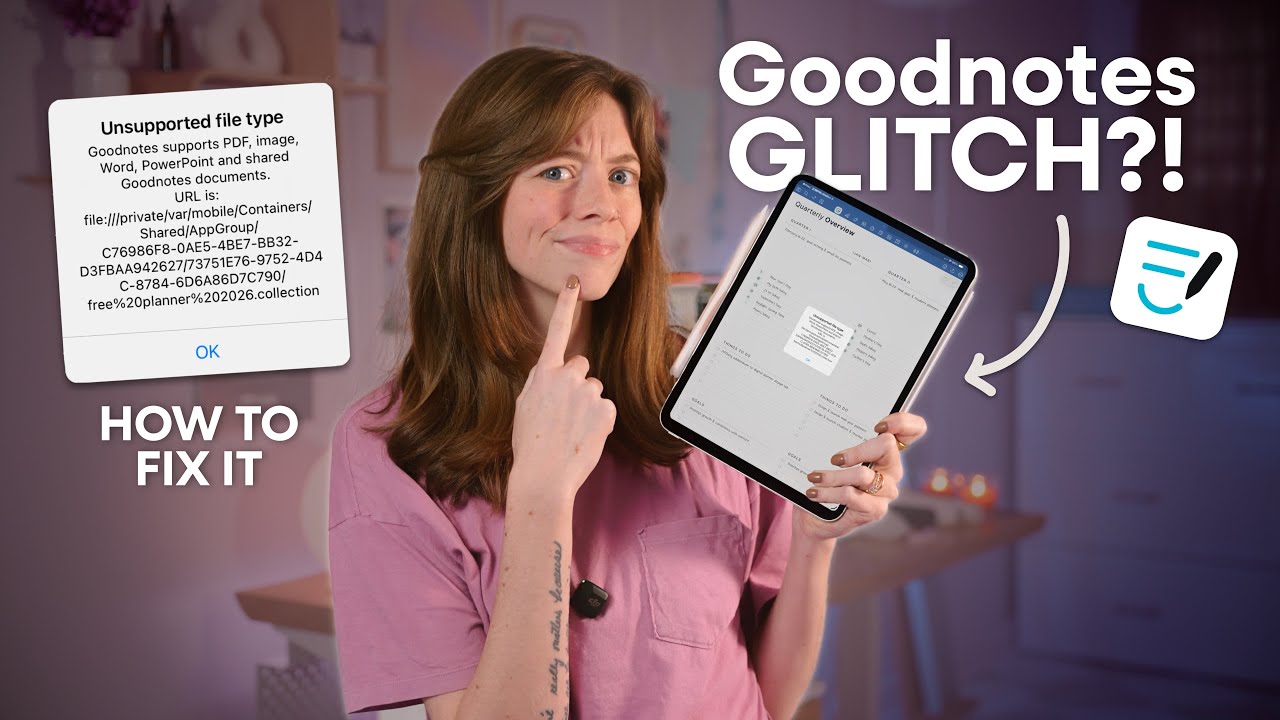
Running into an unsupported file type error when trying to import GoodNotes elements into the app is frustrating. The file often looks like a zip but actually ends in .collection. Because that extension is specific to GoodNotes, a current glitch in the app can block the import even though the file is compatible. Below is a simple, reliable workaround to get those elements into GoodNotes so you can use your stickers and planner assets right away.
What is going on? 🛠️
GoodNotes element collections use a .collection file format. It may appear zipped, but it is not a regular zip file. Right now there is a bug where GoodNotes sometimes shows an unsupported file type error when you try to import these collection files the usual way.
Elements are just a way to store your stickers
That means the file itself is correct, but the app is not always accepting it through the normal share import flow. The workaround is to import the collection from inside GoodNotes using the Elements panel.
Quick workaround to import Elements ✅
Follow these steps to import a .collection file directly into GoodNotes using the Elements tool. This is the method that bypasses the unsupported file error for most people.
- Open GoodNotes and load any notebook or page so you can access the toolbar.
- Tap the Elements icon in the toolbar. This is the sticker icon that opens your collections.
- Scroll to the far right of your collections until you see a plus button.
- Tap the plus button and choose Import from.
- Navigate to where your collection file is saved in the Files app or Recent files. Select the .collection file.
- GoodNotes will automatically create a new collection from that file. You can rename it, delete stickers, or reorder them if you want. Tap Create when ready.
- Your imported elements will now be available in the Elements panel and can be dragged onto any page like any other sticker or image.
If you still see unsupported file type error 🚫
If the above import method does not work for you, try these troubleshooting steps.
- Make sure GoodNotes is up to date. Install the latest update from the App Store since this is a known glitch and may be fixed in a newer release.
- Restart your iPad. A quick restart can clear temporary issues.
- Check the file extension. Confirm the file ends in .collection. If the file was renamed or zipped incorrectly, restoring the proper extension can help. Use caution when renaming files.
- Use the Files app to move the collection file to iCloud Drive or On My iPad and try importing from there.
- Look for GoodNotes in the share menu if you prefer sharing from Files. If GoodNotes is not visible, tap More to find the app.
- Contact GoodNotes support if the problem persists. Provide the collection file and a description of the error so they can investigate the bug.
Tips for organizing Elements ✨
Once your collection is imported, make the most of GoodNotes elements with these quick tips.
- Rename collections to keep stickers organized by project or theme.
- Reorder or delete stickers inside a collection to surface the items you use most.
- Access elements across notebooks so a single collection of planner stickers is available in any document.
- Keep a master folder in Files with your original collection files as backups. That makes reimporting simple if needed.
Final thoughts ❤️
This glitch is annoying but manageable. Importing via the Elements panel usually gets your stickers into GoodNotes without the unsupported file type error. Keep your app updated, check file extensions, and use the Files app to store backups. If nothing works, GoodNotes support can help track down the problem.
Try the steps above and see which one works best for you. If you have other tips or want help troubleshooting a specific file, leave a note in your platform comments so others can benefit from your experience.

Share:
THE ULTIMATE NOTION TOUR: Organize Your Entire Creator Business with One System
The Digital Planner Everyone’s Talking About — And Why It’s Not Like the Rest