


Every year I watch the same pattern play out: people buy a beautiful new planner in December, feel amazing on January 1st, and then quietly stop opening it by February. It's almost never the planner's fault — it's that the system around the planner never got set up. So here's the checklist I actually use to get a new planner year ready before it starts, not after it's already slipping.
Before you even open your planner app
- Decide your week start (Sunday or Monday) based on how your brain actually thinks about weeks, not habit alone
- Pick your weekly layout style — classic, dashboard, task-focused, or brain dump (not sure which? there's a full breakdown on the blog)
- Choose landscape or portrait based on how you actually use your iPad day to day
- Pick light or dark mode before you buy stickers, so you're not reformatting a whole set later
Setting up the planner itself
- Import your planner PDF into GoodNotes or Noteful and confirm the hyperlinks/tabs actually work before you start decorating
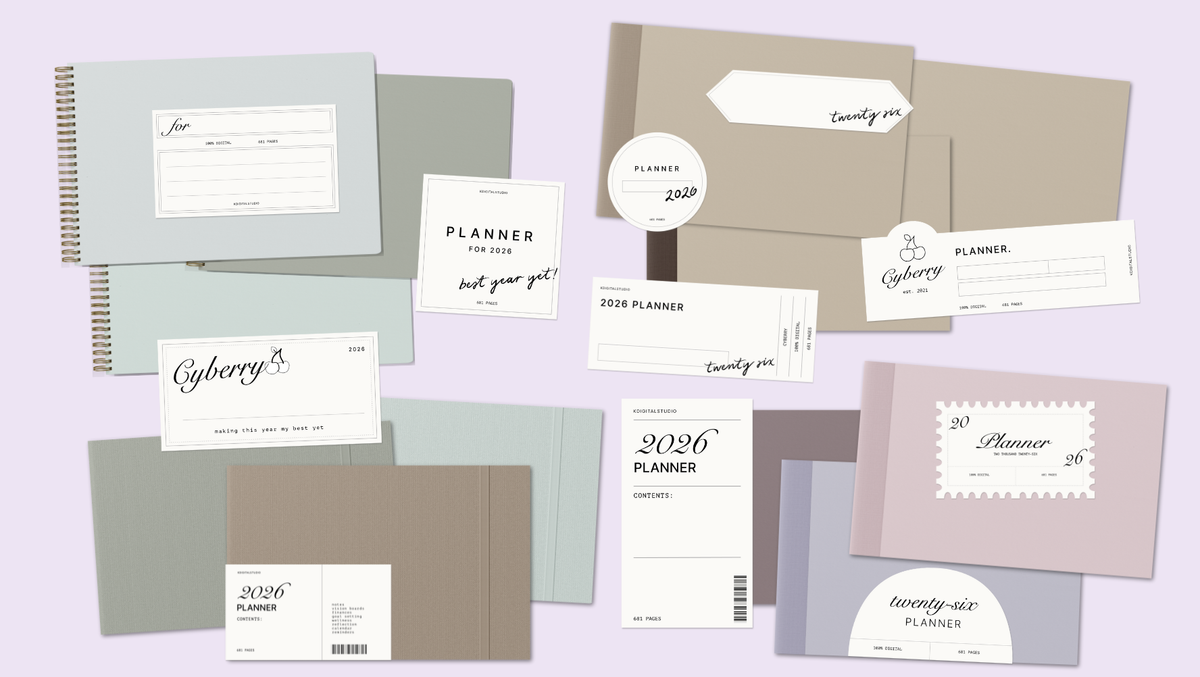
- Set a cover you actually like — this sounds small, but a cover you're excited to open is genuinely half the battle
- Fill in any recurring dates (birthdays, bill due dates, recurring appointments) right away, while your motivation is highest
Making it a one-tap habit
- Create a home screen app icon that opens your planner directly, so there's zero friction between "I should plan" and actually doing it
- Set up a shortcut or calendar integration if your planner supports one, so events land in Apple or Google Calendar automatically
- Bookmark or save your sticker library somewhere easy to find — nothing kills planning momentum like a five-minute hunt for the right sticker pack

The habit-building week
- Open your planner at the same time every day for the first two weeks — right after coffee, right before bed, whatever fits your day
- Keep decorating minimal at first. It's easy to spend an entire evening styling one week and burn out before you've built the habit of actually using it
- Do a 5-minute weekly reset every Sunday (or Monday) to migrate anything undone and set up the week ahead
One month in
- Check in honestly: is your layout still working, or does something need to shift?
- Notice what you're avoiding — if there's a section you never fill in, it's fine to just stop using it
- Add one small personal touch, whether that's a themed sticker set for the season or a reflection page you didn't think you'd want
None of this is complicated, but doing it in order — system first, decoration second — is genuinely the difference between a planner that's still open on your iPad in November and one that quietly got abandoned by Valentine's Day.
Want a planner with all of this baked in?
The 2027 Cyberry planner was built around exactly this checklist — hyperlinked tabs, both week starts, all four weekly layouts, coordinating covers, a home-screen app icon, a calendar shortcut, and the full sticker library, all included. It comes in landscape and portrait, light and dark mode, so you can set it up right the first time.

🍒 Meet the Cyberry 2027 Digital Planner →
🛒 Shop the 2027 Cyberry collection →
Or if you'd rather build your own from the ground up, Digital Planner Design Lab teaches the whole process.
Teilen:
2027 Digital Planner Layouts Explained: Classic vs Dashboard vs Task-Focused vs Brain Dump
Monday vs Sunday Start: Which Digital Planner Week Actually Fits You?